
UMU is a collection of Unity plugins that automates common, repetitive development tasks: editor extensions, a panel based UI framework, audio, logging, save files, and platform specific build settings. Every module can be used on its own. Most modules build on the Common module.
- Author: BMSoft1024 (Miklós Borsi)
- Support: support@bmsoft1024.com (subject: UMU)
1. Requirements and installation #
Requirements
- Unity 6000.3 or newer (developed and tested on 6000.3.20f1)
- Unity packages:
com.unity.ugui,com.unity.inputsystem,com.unity.nuget.newtonsoft-json(they are not bundled, to avoid duplicates)
Installation
- Import the UMU package through Assets > Import Package > Custom Package (or the Package Manager "My Assets" tab).
- Wait for the compilation to finish. All UMU files live under
Assets/UMU. - Open the UMU menu in the Unity menu bar. All editor tools are listed there.
Updating
Delete the Assets/UMU folder before importing a newer version, so no stale files remain. Keep your own settings assets outside the UMU folder, or back them up first.
How UMU is delivered
The code of UMU is delivered as two precompiled, obfuscated assemblies: UMU.dll (runtime) in Assets/UMU and UMU.Editor.dll (editor only) in Assets/UMU/Editor. The public API is intact, so you can call every class and method documented here, and you can derive from the classes that are meant to be extended (for example GuiManager, GuiPanel). Prefabs, scenes and ScriptableObjects reference the scripts inside the DLLs and work as in a source project.
2. Package contents #
| Module | Purpose |
|---|---|
| Common + Utility | Shared infrastructure: serialization, reflection helpers, inspector attributes, save files, editor basics |
| GUI Manager | Panel and popup based UI framework with history, transitions, safe area support |
| Audio | Runtime audio system: SFX pool, music crossfade, mixer routing with ducking, volume persistence |
| Audio Cutter | Editor wizard that splits audio clips into separate files |
| Messenger | Message broadcast between components and scenes |
| Logger | Unified logging layer with tags and a console window |
| Debug Mode | Development settings window: log level, debug switch, Android keystore password helper |
| Internet Checker | Asynchronous, non blocking internet connection check |
| Hardware Detector | Rule based device tier evaluation (GPU, CPU, RAM, resolution, iOS generation) |
| Android Manifest Editor | Visual editor for AndroidManifest.xml |
| Xcode Settings Editor | Edit Xcode project settings inside Unity for iOS builds |
| Resource Checker | Memory audit of the open scene (third-party public domain tool) |
| Demo content | Demo scenes, prefabs, UI art, audio clips and 3D models (only in the package variant with demo) |
The UMU editor menu contains one entry per tool.
3. GUI Manager #
The GUI Manager module opens, closes and tracks full screen panels and layered popups, keeps a navigation history, locks buttons during transitions, and ships a set of Unity UI selectables, anchoring and safe area helpers, and editor tools.
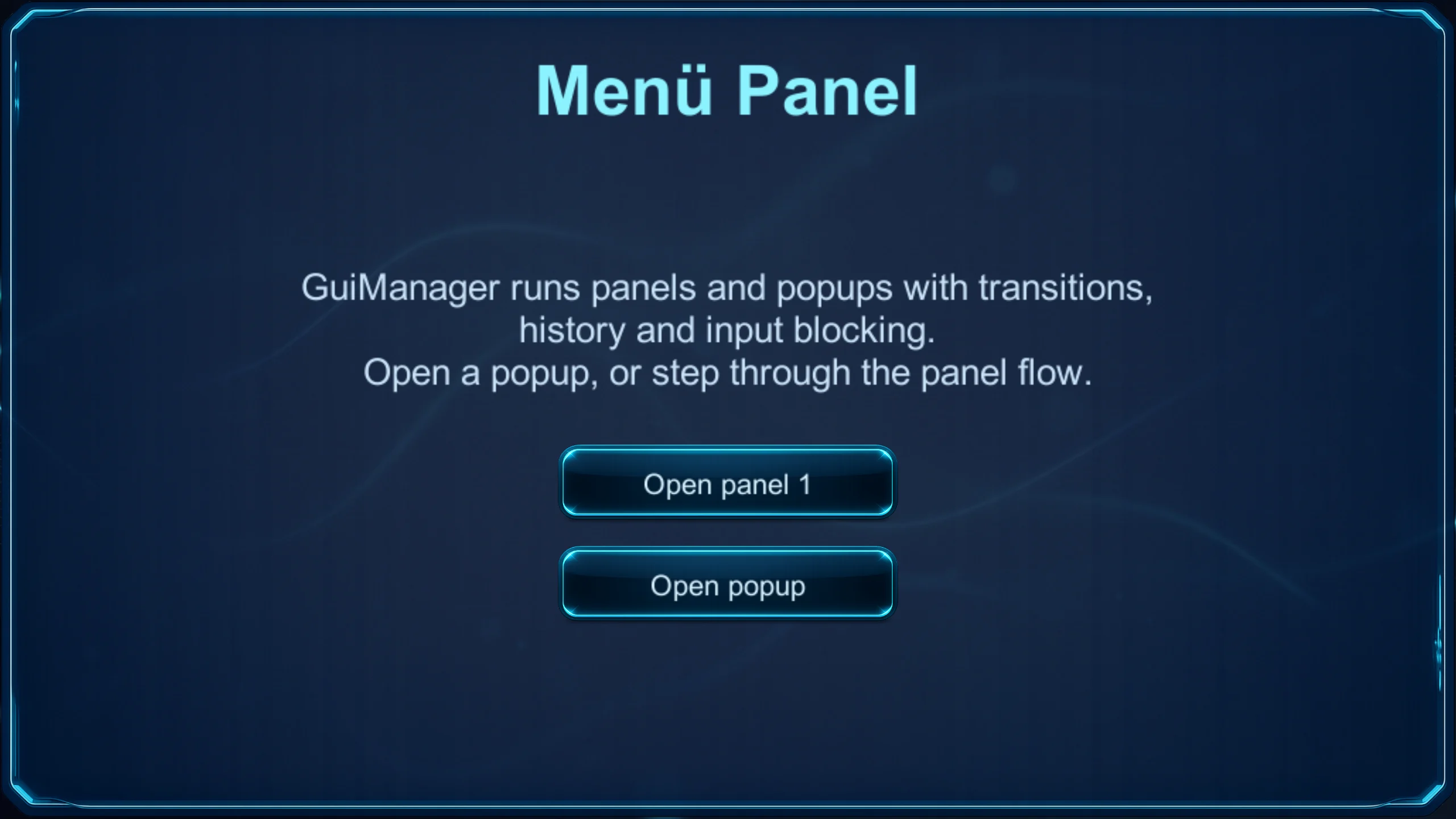
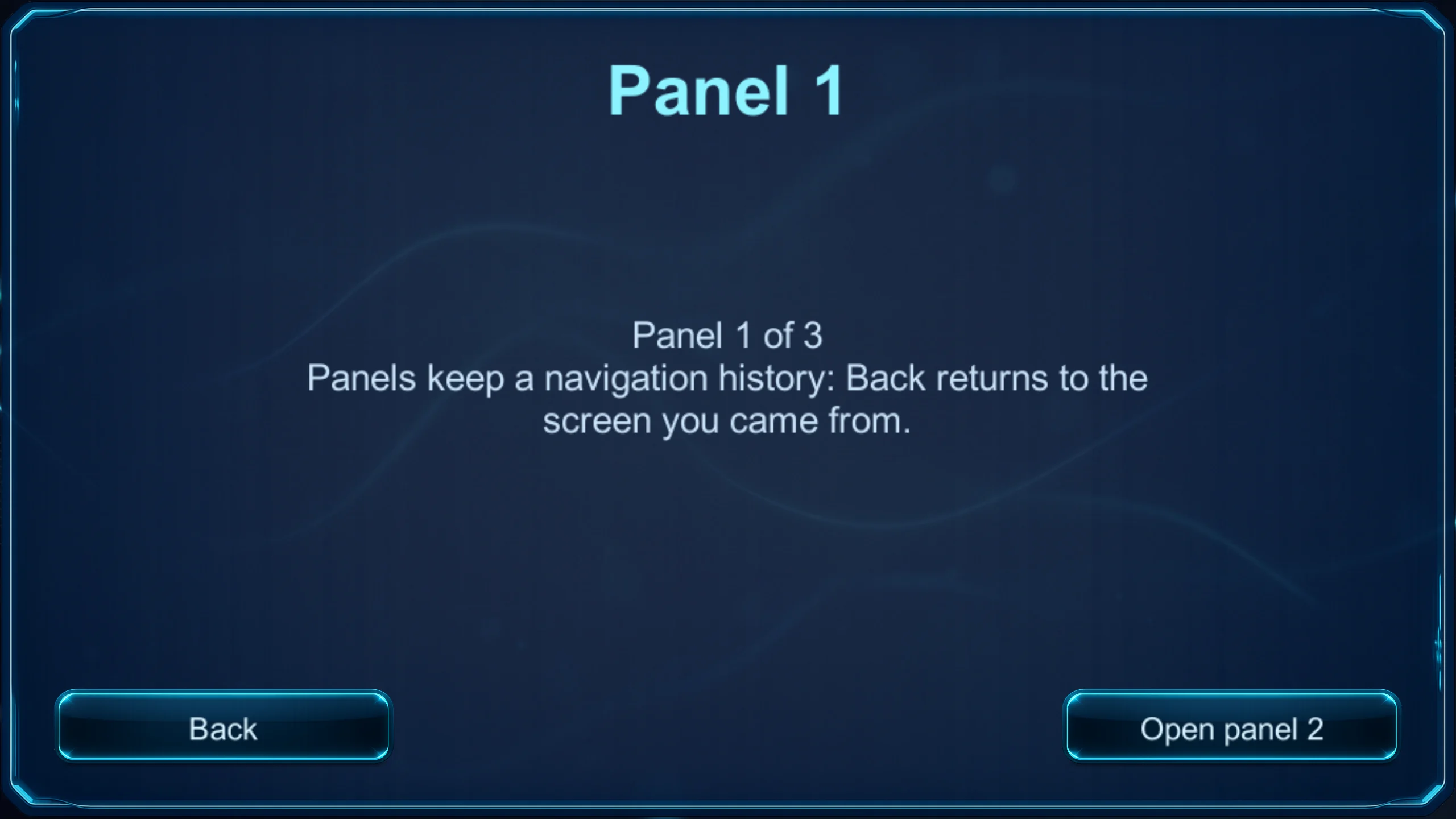
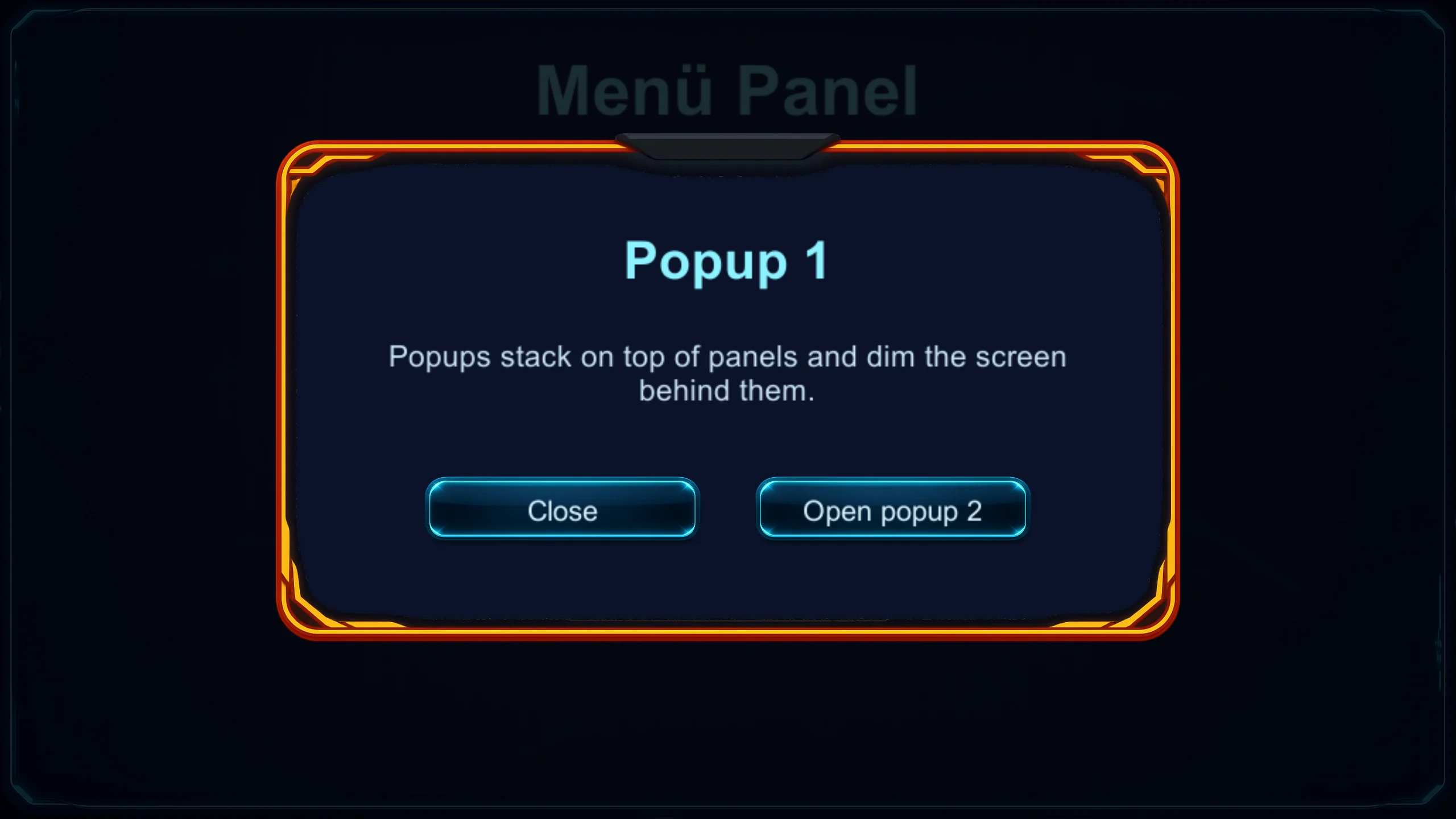

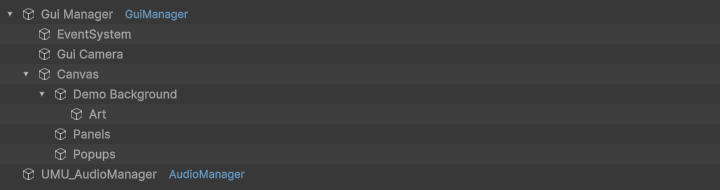

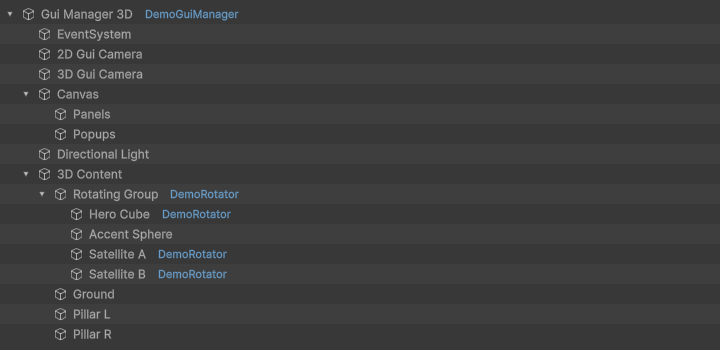
All runtime types live in the UMU.GuiManager namespace unless noted otherwise. Inside a namespace that starts with UMU, the simple name GuiManager resolves to the namespace, so write UMU.GuiManager.GuiManager there. In the global namespace, using UMU.GuiManager; is enough.
Core concepts used throughout this reference:
- Panel: a full screen screen. Only one panel is current at a time. Opening a panel closes the current one and records it in the history.
- Popup: a window that opens on top of the current panel. Several popups can be open at once, ordered by layer.
- Panel id: the string used to open a panel or popup. It is the path of the prefab inside a
Resourcesfolder, without extension (for exampleDemo Popup 1). The Settings window can generate aGuiPanelsconstants class with one constant per prefab. - Messages: an optional
Dictionary<object, object>passed toOpenPanelorOpenPopupand delivered to the panel'sOnPreOpen.
Editor menu and window reference #
Menu overview #
| Menu path | What it does |
|---|---|
| UMU > Gui Manager > Settings | Opens the "Gui Manager Settings" window. |
| UMU > Gui Manager > Panel Overview | Opens the "GUI Panel Overview" window. |
| UMU > Gui Manager > Panel Optimizer | Audits every panel prefab and writes a report to the Console. Changes nothing. |
| UMU > Gui Manager > Panel Optimizer - Apply Safe Fixes | Runs the same audit and also applies the safe raycast fixes. |
| UMU > Gui Manager > Replace Unity UI To UMU Gui | Converts Unity UI selectables under the selected GameObject to their UMU Gui counterparts. |
| GameObject > UMU_Gui > Gui Button | Creates a Gui Button. |
| GameObject > UMU_Gui > Gui Toggle | Creates a Gui Toggle. |
| GameObject > UMU_Gui > Gui Slider | Creates a Gui Slider. |
| GameObject > UMU_Gui > Gui Scrollbar | Creates a Gui Scrollbar. |
| GameObject > UMU_Gui > Gui Dropdown | Creates a Gui Dropdown. |
| GameObject > UMU_Gui > Gui Input Field | Creates a Gui Input Field. |
The GameObject > UMU_Gui items are listed in that order in the menu (Button, Toggle, Slider, Scrollbar, Dropdown, Input Field).
Settings window (UMU > Gui Manager > Settings) #
Window title: "Gui Manager Settings". The window has a fixed size of 800 x 135 pixels. The values are stored in the Gui Manager plugin save file.

| Control (as shown) | What it does | Default | Notes |
|---|---|---|---|
| Gui panel prefabs resources path (text field) | Project relative folder that contains your panel and popup prefabs. The panel id drop downs in the Inspector list the prefabs found in this folder, and the constants class is generated from it. | empty | The label turns red while the folder does not exist. Ids are built relative to the Resources folder, so the folder should be inside a Resources folder for the panels to load at runtime. |
| search path (button, first row) | Opens a folder picker for the prefab folder. | n/a | The chosen absolute folder is converted to a project relative path. |
| Gui panel id script path (text field) | Project relative folder where the generated GuiPanels.cs script is written. | empty | The label turns red while the folder does not exist. |
| search path (button, second row) | Opens a folder picker for the script folder. | n/a | Same conversion as above. |
| Transition mode (enum popup) | Project wide default engine for GuiScreenTransition components that use the global mode: Builtin or DOTween. | Builtin | See section 2.5 for the engine behaviour. |
| save settings (button) | Writes the settings to the plugin save file and closes the window. | n/a |
Generated constants (GuiPanels):
- Whenever a prefab inside the prefab folder is imported, deleted or moved, the constants script is regenerated and the Console logs "Created all gui constans".
- The script contains
public static class GuiPanelswith onepublic const stringper prefab found in the folder (including sub folders). - Constant names are derived from the prefab path: lower case, spaces and path separators replaced by underscores, characters other than letters, digits and underscores removed, and a
panel_prefix added when the name does not start with a letter (for exampleDemo Popup 1becomesdemo_popup_1). - Constant values are the path after the last
Resources/folder, without extension. - Any other file named
GuiPanels.csunderAssetsthat is not inside the configured script folder is deleted when the script is generated. - Nothing is generated while the prefab folder path is empty.
Panel Overview window (UMU > Gui Manager > Panel Overview) #
Window title: "GUI Panel Overview". It shows a grid of every prefab in the project whose root object carries a GuiPanel component, sorted by name.
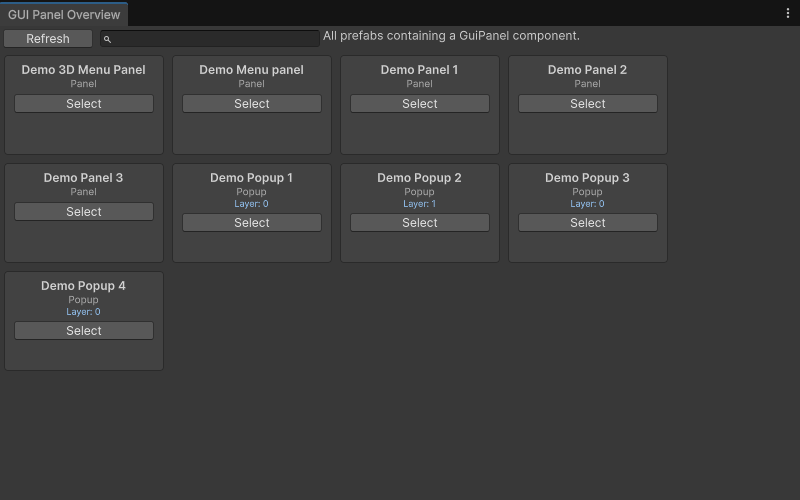
| Control (as shown) | What it does | Default | Notes |
|---|---|---|---|
| Refresh (button) | Rescans the project for panel prefabs and rebuilds the grid. | n/a | The scan also runs when the window opens. |
| Search field | Filters the tiles by prefab name. | empty | Case insensitive "contains" match. |
| "All prefabs containing a GuiPanel component." (label) | Description of the list. | n/a | |
| Tile (one per prefab, 160 x 100) | Shows the prefab name, the panel type (Panel, Popup or PopupAndPanel), and for popups a "Layer: n" line. | n/a | The layer line appears only when the type is Popup. |
| Select (button on a tile) | Pings the prefab in the Project window and selects it. | n/a |
Panel Optimizer (UMU > Gui Manager > Panel Optimizer) #
Scans every prefab in the project that has a GuiPanel on the root or on any child. The result is written to the Console as one report. Nothing is modified.
For each such prefab the report is printed when the prefab has any issue or any Graphic with Raycast Target on. Each printed entry contains the asset path and a line "graphics: N, raycastTarget on: N, masks: N" (masks counts Mask and RectMask2D components), followed by the issues:
| Finding text | Meaning |
|---|---|
| non-interactive Graphic with raycastTarget on: <path> | A Graphic that has Raycast Target on, is not under any Selectable, and is not the Target Graphic of any Selectable. It blocks raycasts and costs performance without being clickable. |
| Selectable targetGraphic has raycastTarget off (unclickable): <path> | A Selectable whose Target Graphic has Raycast Target off, so it cannot be clicked. |
| GuiPanel without firstSelected (no gamepad/keyboard entry point): <path> | A GuiPanel whose First Selected field is empty. |
The final line is "Panel Optimizer done. prefabs: N, issues: N, applied fixes: N".
Panel Optimizer - Apply Safe Fixes #
Runs the same scan and also changes the prefabs, then saves the assets:
- Graphics reported as "non-interactive Graphic with raycastTarget on" get Raycast Target turned off. In this mode they are not listed as issues, only counted in "fixed: N" for the prefab.
- Target Graphics reported as "unclickable" get Raycast Target turned on (the finding is still listed).
- The "GuiPanel without firstSelected" finding is only reported, never fixed.
The report line "applied fixes" shows the total number of changed Graphics.
Replace Unity UI To UMU Gui #
Works on the GameObject selected in the Hierarchy (Selection.activeGameObject) and on all of its children. With nothing selected it logs the error "No selected gameObject!".
It converts these Unity UI components to their UMU counterparts, copying the component values and keeping the GameObject:
| Unity UI | UMU Gui |
|---|---|
| Button | GuiButton |
| Scrollbar | GuiScrollBar |
| Dropdown | GuiDropdown |
| InputField | GuiInputField |
| Toggle | GuiToggle |
| Slider | GuiSlider |
Converted GameObjects are renamed to "<menu item name>_<old name>", for example "Gui Button_Button". Components that are already UMU Gui components are kept.
GameObject > UMU_Gui creators #
Each item runs Unity's own GameObject > UI > <type> command, then converts the new object to the UMU Gui component and names it.
| Menu item | Unity UI command used | Resulting component | GameObject name |
|---|---|---|---|
| Gui Button | Button | GuiButton | Gui Button |
| Gui Toggle | Toggle | GuiToggle | Gui Toggle |
| Gui Slider | Slider | GuiSlider | Gui Slider |
| Gui Scrollbar | Scrollbar | GuiScrollBar | Gui Scrollbar |
| Gui Dropdown | Dropdown | GuiDropdown | Gui Dropdown |
| Gui Input Field | Input Field | GuiInputField | Gui Input Field |
Notes:
- Select a GameObject first (normally the panel or a container under a Canvas). The new object is parented to the selected object.
- All of the Inspector fields of the Unity component are kept, because the Gui components derive from the Unity components.
Inspector tools that belong to the editor module #
| Control | Where | What it does |
|---|---|---|
| Panel id drop down (popup with the prefab list, first entry "Empty") | Every field marked as a panel id: Initially Open, Pre Loaded Panels, Pre Loaded Popups, the Panel and Popup fields of Gui Button, and Previous Panel Id in panel change settings | Lists the prefabs found in the Gui panel prefabs resources path (without extension). Choosing "Empty" clears the id. |
| Select (button next to the drop down) | Same fields | Selects the chosen prefab asset in the Project window. The tooltip shows the search folder. |
| o (small button next to Select) | Same fields | Toggles a search mode. The Select button becomes a text field that filters the drop down list (case insensitive). Pressing o again leaves the search mode and restores the previously selected id. |
| Panel Change State section | GuiPanel Inspector | See section 2.2. |
| Preset buttons Stretch, Top-Left, Top-Right, Bottom-Left, Bottom-Right, Center | OverrideAnchor Inspector | See section 2.8. |
Inspector reference #
Unity shows serialized fields with their nicified names (for example blockInputDuringTransitions is shown as "Block Input During Transitions"). Components without a custom Inspector use these default labels. Fields marked [HideInInspector] are not listed unless the table says that the custom Inspector shows them.
GuiManager #
Add it to one GameObject in the scene. There is no custom Inspector. GuiManager.Instance finds the first manager in the scene and is also set in Awake.
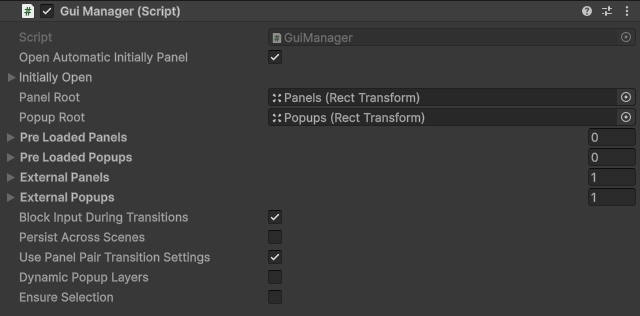
| Label | Type | Default | Behaviour |
|---|---|---|---|
| Open Automatic Initially Panel | bool | false | Serialized, but not read by the current manager code. The initial panel opens whenever Initially Open holds an id. |
| Initially Open | GuiPanelID (panel id drop down) | empty | Id of the panel opened in Start. Empty means no panel is opened automatically. |
| Panel Root | RectTransform | none | Parent of all loaded panels. Required before a panel can be loaded. |
| Popup Root | RectTransform | none | Parent of all loaded popups. Also the parent of the transition blocker and the root searched for a focus target while a popup is open. |
| Pre Loaded Panels | List of GuiPanelID | empty | Panels instantiated, registered and deactivated at startup, so that the first open has no loading cost. |
| Pre Loaded Popups | List of GuiPanelID | empty | Same for popups. |
| External Panels | List of GuiPanel | empty | Panel prefabs from the project (no Resources folder needed). At startup each one is instantiated and registered under the prefab name as id. |
| External Popups | List of GuiPanel | empty | Same for popups. |
| Block Input During Transitions | bool | true | While a panel switch or any panel or popup open or close transition runs, a full screen transparent raycast blocker named UMU_TransitionBlocker is shown on top, so no click reaches elements mid animation. |
| Persist Across Scenes | bool | false | When on, the root GameObject of the manager is marked DontDestroyOnLoad. On every active scene change all loaded panels and popups are destroyed, history and queues are cleared, and the external and preload lists are loaded again. When off, a scene change closes the current panel. |
| Use Panel Pair Transition Settings | bool | true | When on, entries in the closing panel's Panel Change Process Settings list (matched by the id of the panel being opened) override the default Has Change Process and Waiting For Change Process flags for that switch. |
| Dynamic Popup Layers | bool | false | When on, a newly opened popup (not Always On Top) gets the highest currently open popup layer plus one, ignoring its serialized Layer. |
| Ensure Selection | bool | false | When on, the manager keeps a Selectable selected inside the active root (the popup root while a popup is open, otherwise the current panel). If the selection leaves it, the panel's First Selected is selected when it is interactable, otherwise the first interactable Selectable found. Selection history keeps up to 32 entries. |
Runtime behaviour worth knowing:
- Opening a panel with the id of the current panel, or with an empty id, does nothing. If a panel switch is already running, the new request is queued (only the latest queued request is kept) and starts when the running switch ends.
- The history records the panel that is left. Opening a panel that is already in the history cuts the history back to the entry before it.
BackToPreviousPanel()opens the last history entry; with an empty history it only firesonBackPresedOnEmptyHistory. - A popup opens immediately only if its layer is higher than the layer of every open popup that is not Always On Top (or it is Always On Top, or Dynamic Popup Layers applies). Otherwise it is queued and opened when a popup closes (the queued popup with the highest layer first).
- The popup is placed at local z = 0.001 x layer (Always On Top popups use 1,000,000 + layer). Children of the panel and popup roots are re-sorted by active state and z after each open.
- While a popup is open, the buttons (
Lock) of the panel below and of lower layer popups are disabled. When popups close, the buttons of the top popup, or of the current panel when no popup is left, are restored. - Back input: in the Editor and on Android the Escape key (the Android back button) is handled each frame, unless busy. With open popups it closes the top popup, otherwise it goes back to the previous panel. A panel with Allow Back Input off ignores it.
SetBackInputChecker(false)disables the check. - Panels are loaded with
Resources.Loadfrom their id when they are not registered yet.RegisterPanelregisters an already instantiated panel instead.
Public events (plain Action fields, not shown in the Inspector): onBackPresedOnEmptyHistory, onOpenedPanel(string), onClosedPanel(string), onOpenedPopup(string), onClosedPopup(string), onPreOpenPanel(string), onPreClosePanel(string), onPreOpenPopup(string), onPreClosePopup(string).
GuiPanel (abstract base of every panel and popup) #
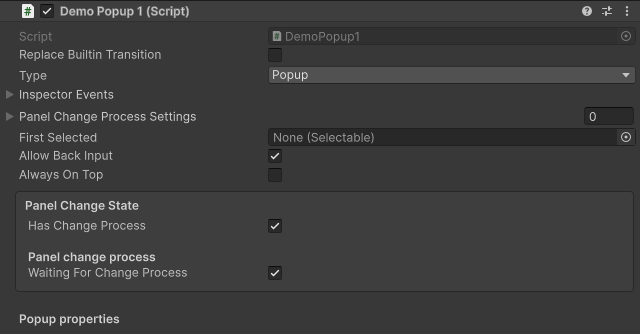
GuiPanel requires an Image and a CanvasRenderer. It has a custom Inspector: the default fields first, then the sections below.
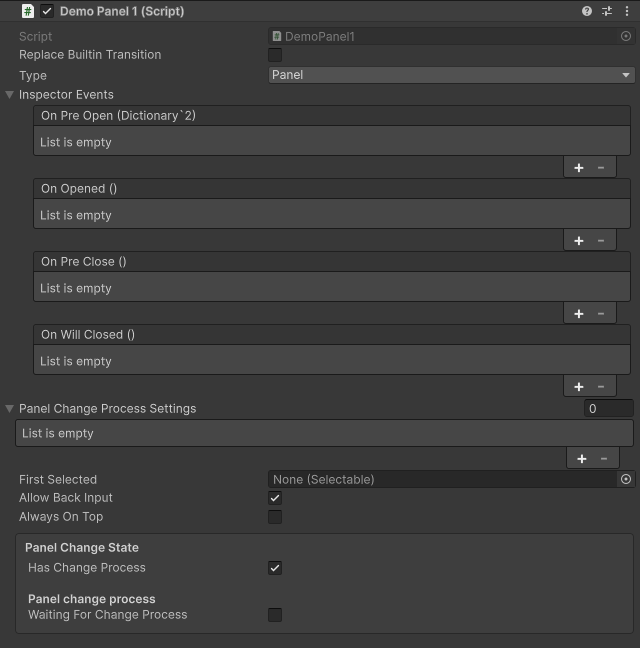
| Label | Type | Default | Behaviour |
|---|---|---|---|
| Type | PanelType | Panel | Panel, Popup or PopupAndPanel. The manager decides panel versus popup by the method you call (OpenPanel or OpenPopup), not by this field. The field controls whether Layer is visible in the Inspector (hidden for Panel) and how the panel is labelled in Panel Overview. |
| Inspector Events | InspectorEvent | all empty | Four events, see the nested type below. |
| Panel Change Process Settings | List of PanelChangeProcessData | empty | Per target panel overrides, see the nested type below. |
| First Selected | Selectable | none | Selected through the EventSystem when the open finished, and restored after a popup above this panel closes. Used as the keyboard and gamepad entry point. |
| Allow Back Input | bool | true | When off, the Escape or Android back input is ignored while this panel is current or is the top popup. |
| Always On Top | bool | false | Overlay flag for popups. The popup always opens regardless of the layer of other popups and never blocks lower popups from opening. It is ignored when the manager picks the top popup for back input and CloseTopPopup. |
| Replace Builtin Transition | bool | false | When on and onCustomTransition has subscribers, the built-in transition of the panel is skipped and only the custom transition runs. |
| Has Change Process (in the Panel Change State section) | bool | true | When on, opening and closing wait until the panel reports that its transition is over (onPanelChangeProcessIsOver). When off, the lifecycle does not wait; the built-in panels also skip their animation. |
| Waiting For Change Process (in the Panel Change State section) | bool | true | Shown only when Has Change Process is on (turning Has Change Process off also turns this off). When on, the manager waits until this panel finished closing before it activates the next panel. When off, the next panel opens while this one is still closing. |
| Layer (below the sections) | GuiLayer (int value) | 0 | Shown only when Type is not Panel. Popup order: a higher layer is on top. Also read by GuiLayerFollower. |
Fields that exist but are not in the Inspector: id (string, assigned by the manager), result (object, see the popup result example), onClickSelectableItem, onPanelChangeProcessIsOver, onCustomTransition.
Lifecycle order when the manager opens a panel or popup (the manager level event is raised first):
PrepareOpen()(same frame as the activation, before a one frame wait).- Manager event
onPreOpenPaneloronPreOpenPopup, thenOnPreOpen(messages), then all buttons are locked. StartOpenedAnimation(); the lifecycle waits untilonPanelChangeProcessIsOveris raised (when Has Change Process is on).- Manager event
onOpenedPaneloronOpenedPopup, thenOnOpened(). - The lifecycle waits while the previous panel is still closing, then the buttons are restored and First Selected is selected.
Closing: manager event onPreClosePanel or onPreClosePopup, OnPreClose(), buttons locked, StartClosedAnimation(), wait, OnWillClosed(), manager event onClosedPanel or onClosedPopup, then the GameObject is deactivated.
Nested type InspectorEvent (shown as Inspector Events):
| Label | Type | Raised by |
|---|---|---|
| On Pre Open | GuiDictEvent (UnityEvent<Dictionary<object, object>>) | Base OnPreOpen(messages); receives the messages (may be null). |
| On Opened | GuiEvent (UnityEvent) | Base OnOpened(). |
| On Pre Close | GuiEvent | Base OnPreClose(). |
| On Will Closed | GuiEvent | Base OnWillClosed(). |
An override that does not call the base method does not raise the matching Inspector event.
Nested type PanelChangeProcessData (one entry of Panel Change Process Settings, shown as a foldout):
| Label | Type | Default | Behaviour |
|---|---|---|---|
| Default Settings | bool | false | Only hides the Previous Panel Id field in the Inspector while on. The runtime lookup does not read it. |
| Exists Panel Change Process | bool | true | Replaces the panel's Has Change Process for this pair. |
| Previous Panel Id | string (panel id drop down) | empty | Visible when Default Settings is off. At runtime the entry is used when this panel closes because the panel with this id is being opened. |
| Waiting For Panel Change Process | bool | true | Visible when Exists Panel Change Process is on (forced off when it is turned off). Replaces Waiting For Change Process for this pair. |
An entry applies only when the manager's Use Panel Pair Transition Settings is on. Only the Exists and Waiting values of the entry take part in the decision whether the manager waits for the closing panel.
Nested type GuiLayer: a serializable wrapper of an int value with implicit conversion from and to int, the arithmetic operators +, -, *, and the comparison operators.
Public API of GuiPanel: ActivateButtons(), DeactivateButtons(), SelectableItemReInitialize<T>(T selectableObject, bool interactable = true) (registers or re-registers a Gui selectable that was added at runtime; the panel collects the Gui selectables in its children when the manager registers it), GetChangeProcessSettings(string otherPanelId).
GuiTweenPanel #
Requires a GuiScreenTransition on the same GameObject. It adds no serialized fields of its own; the Inspector shows the GuiPanel fields. It starts the open transition in StartOpenedAnimation and the close transition in StartClosedAnimation, and applies the hidden start state in PrepareOpen so that the finished window is never drawn for one frame. When Replace Builtin Transition is on and a custom transition is subscribed, PrepareOpen does nothing and only the custom transition runs.
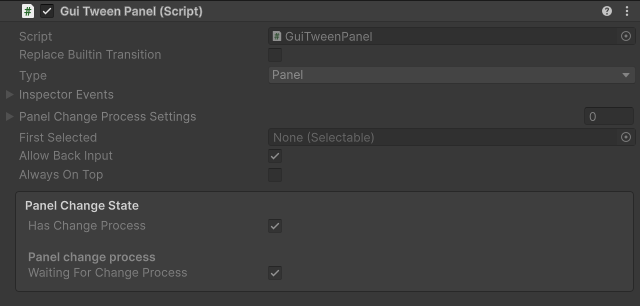
GuiTweenControlledPanel and GuiAnimatorControlledPanel #
Two alternative ready made panels (both derive from GuiPanel).
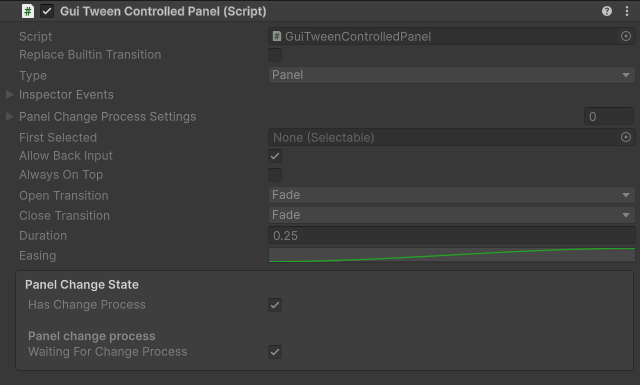
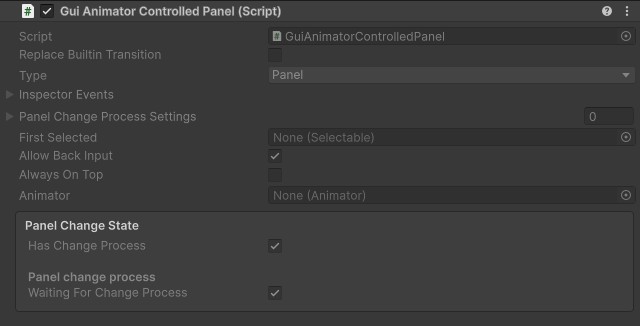
GuiTweenControlledPanel (no Animator, no separate transition component):
| Label | Type | Default | Behaviour |
|---|---|---|---|
| Open Transition | TweenType | Fade | Effect when opening. |
| Close Transition | TweenType | Fade | Effect when closing. |
| Duration | float (seconds) | 0.25 | Duration in unscaled time. A value of 0 or less, or the type None, finishes at once. |
| Easing | AnimationCurve | EaseInOut | Evaluated over normalized time. |
TweenType values: None (no effect), Fade (alpha), SlideFromLeft, SlideFromRight, SlideFromTop, SlideFromBottom (moves from one panel width or height away to the original position), Scale (from almost zero to the original scale), FadeAndScale. A CanvasGroup is added automatically when missing. With Has Change Process off no effect is played.
GuiAnimatorControlledPanel (requires an Animator):
| Label | Type | Default | Behaviour |
|---|---|---|---|
| Animator | Animator | none | Not assigned automatically. When opening it plays the state named Open, when closing the state named Close (constants openAnimationState, closeAnimationState), on layer 0, and waits for the clip length (adjusted by the state speed) plus 0.05 seconds in unscaled time. Without an Animator, or with Has Change Process off, TestAnimation runs instead (a 0.5 second wait when Has Change Process is on). |
GuiScreenTransition #
Fade, slide or scale transition driven through a GuiTweenPanel. It adds a CanvasGroup to the GameObject when missing and remembers the anchored position and scale found in Awake as the resting state.
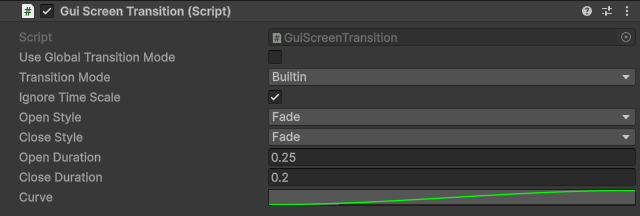
| Label | Type | Default | Behaviour |
|---|---|---|---|
| Use Global Transition Mode | bool | true | When on, the engine comes from the project setting (Settings window, Transition mode). When off, Transition Mode below is used. |
| Transition Mode | GuiTransitionMode | DOTween | Builtin runs a coroutine without dependencies. DOTween uses DOTween when an assembly named DOTween is loaded in the project; otherwise it silently falls back to Builtin. Used only when Use Global Transition Mode is off. |
| Ignore Time Scale | bool | true | Transitions advance in unscaled time (both engines). |
| Open Style | Style | Fade | Style of the open transition. |
| Close Style | Style | Fade | Style of the close transition. |
| Open Duration | float (seconds) | 0.25 | A value of 0 or less jumps to the end state at once. |
| Close Duration | float (seconds) | 0.2 | Same for closing. |
| Curve | AnimationCurve | EaseInOut | Easing curve for both engines. |
Style values and their start state when opening (closing plays the same motion in reverse; every style except None also fades the alpha between 0 and 1):
| Style | Meaning |
|---|---|
| None | No effect. The panel jumps to the end state and the completion callback fires at once. |
| Fade | Alpha only. |
| SlideLeft | Starts one parent width to the left of the resting position and slides in. |
| SlideRight | Starts one parent width to the right. |
| SlideUp | Starts one parent height above the resting position. |
| SlideDown | Starts one parent height below. |
| ScaleUp | Starts at scale 0 and grows to the resting scale. |
| ScaleDown | Starts at 1.2 times the resting scale and shrinks to it. |
After a close the alpha is 0 and the position and scale are restored. If the GameObject is inactive when a transition is requested, the end state is applied and the completion callback fires immediately.
Public members: EffectiveMode (the resolved engine), PlayOpen(Action), PlayClose(Action), PrepareOpen(), KillTransition() (stops a running transition without raising its completion callback).
Project setting (GuiSettings): GuiSettings.Current.transitionMode (default Builtin) can also be assigned from code to override the engine at runtime.
GuiButton and the other Gui selectables #
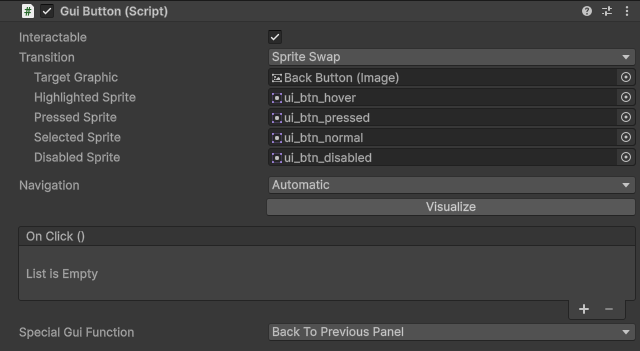
All Gui selectables derive from the Unity UI component of the same name and keep every Unity Inspector field (Interactable, Transition, Target Graphic, Navigation, events and so on). Their custom Inspectors are the Unity editors of the base components. When the panel is registered it initializes them: they report user changes to the panel (which forwards them to GuiManager.OnClickSelectableItem), and the panel locks and restores them (interactable set to false during transitions and below popups; restored to the value interactable had at initialization).
| Component | Derives from | Reports to the panel when |
|---|---|---|
| GuiButton | Button | clicked |
| GuiToggle | Toggle | value changed |
| GuiSlider | Slider | value changed |
| GuiScrollBar | Scrollbar | value changed |
| GuiDropdown | Dropdown | value changed |
| GuiInputField | InputField | text changed |
GuiButton adds three Inspector fields and runs a panel action on click:
| Label | Type | Default | Behaviour |
|---|---|---|---|
| Special Gui Function | SpecialFunction | None | Action executed on click, see the list below. |
| Panel | GuiPanelID (panel id drop down) | empty | Shown only for OpenPanel. Panel to open. |
| Popup | GuiPanelID (panel id drop down) | empty | Shown for OpenPopup and ClosePopup. Popup to open or close. |
SpecialFunction values: None (does nothing besides reporting the click), OpenPanel (GuiManager.Instance.OpenPanel(panel.id)), BackToPreviousPanel, OpenPopup (OpenPopup(popup.id)), ClosePopup (ClosePopup(popup.id)), CloseAllPopup, CloseTopPopup.
GuiEventSystem derives from Unity's EventSystem and adds no fields.
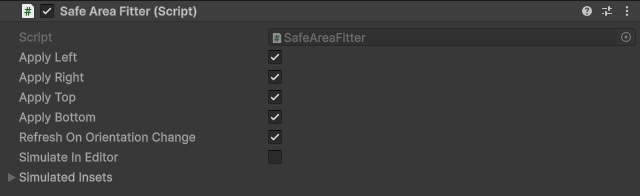
SafeAreaFitter #
Keeps a RectTransform inside the device safe area (notches, camera cutouts, home indicator) by setting its anchors. Requires a RectTransform. Apply it to a full stretch container, and put the interactive content inside it.
| Label | Type | Default | Behaviour |
|---|---|---|---|
| Apply Left | bool | true | When off, the left anchor is left unchanged. |
| Apply Right | bool | true | Same for the right side. |
| Apply Top | bool | true | Same for the top. |
| Apply Bottom | bool | true | Same for the bottom. |
| Refresh On Orientation Change | bool | true | When on, the fitter re-applies in Update whenever the screen orientation or the safe area changes (and every frame while Simulate In Editor is on). The initial application in Awake always runs. |
| Simulate In Editor | bool | false | Editor only. Uses the insets below instead of the real safe area, because the Game view has no safe area. |
| Simulated Insets | Vector4 | (0.056, 0.054, 0.056, 0) | Screen fractions: x = left, y = bottom, z = right, w = top. Used only when Simulate In Editor is on. |
Apply() can be called from code.
OverrideAnchor #
Positions and sizes a RectTransform relative to the edges of other RectTransforms (world space edge positions plus an offset). Requires a RectTransform. The custom Inspector shows a "General" section, and a "Normal Anchor" or "Advanced Anchor" section depending on Type.

| Label | Type | Default | Behaviour |
|---|---|---|---|
| Type | AnchorType | None | None does nothing. Normal uses one target for all four sides. Advanced uses one target per side. |
| Update Type | UpdateType | OnStart | When the anchors are applied: OnStart, OnEnable, OnUpdate, OnLateUpdate, OnFixedUpdate, or OnOrientationChange (checked each frame; applies only when the screen orientation changed). |
Normal Anchor (Type = Normal). Nothing is applied while Target is empty. After placing the four edges, the size is set to the distance between the right and left, and the top and bottom positions.
| Label | Type | Default | Behaviour |
|---|---|---|---|
| Target | RectTransform | none | The rectangle whose edges are followed. |
| Top | nGUI_VerticalAnchor | TargetTop | Which edge or center of the target the top edge follows: TargetTop, TargetBottom, TargetCenter. |
| (value after Top) | float | 0 | Offset added to that position (world units). |
| Right | nGUI_HorizontalAnchor | TargetRight | TargetLeft, TargetRight, TargetCenter. |
| (value after Right) | float | 0 | Offset. |
| Bottom | nGUI_VerticalAnchor | TargetBottom | As Top. |
| (value after Bottom) | float | 0 | Offset. |
| Left | nGUI_HorizontalAnchor | TargetLeft | As Right. |
| (value after Left) | float | 0 | Offset. |
Preset buttons (Normal Anchor section): Stretch, Top-Left, Top-Right, Bottom-Left, Bottom-Right, Center. A preset sets Type to Normal, writes the four anchor choices, and writes the four offsets. Stretch follows the target's top, bottom, left and right edges with zero offsets. The other presets pin all four sides to the same target edge (or to the target center for Center) and compute the offsets from the current width and height of the element. A preset can be undone with Undo.
Advanced Anchor (Type = Advanced). Each side has its own target, anchor choice and offset, with the same choices and defaults as Normal (Top, Right, Bottom and Left, each as: target, anchor, offset). A side without a target is left unchanged. The height is set only when both Top and Bottom have targets, and the width only when both Left and Right have targets.
ApplyAnchorSettings() can be called from code.
GuiLayerFollower #
Keeps the Unity sorting order of this object and its children in step with the GuiPanel layer found in a parent. Attach it to particle effects or nested canvases inside a panel or popup prefab.

| Label | Type | Default | Behaviour |
|---|---|---|---|
| Order Offset | int | 0 | Added to the panel layer before it is written to Renderer.sortingOrder and Canvas.sortingOrder of this object and all its children (including inactive ones). The values are updated in Update whenever the panel layer changes. |
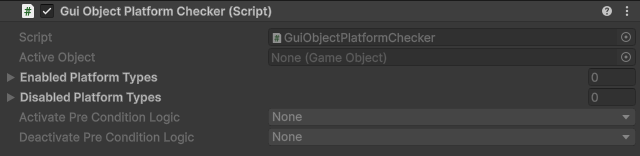
GuiObjectPlatformChecker (namespace UMU.Platform) #
Shows or hides a GameObject depending on the platform, in Awake.
| Label | Type | Default | Behaviour |
|---|---|---|---|
| Active Object | GameObject | none | Object to show or hide. When empty, the GameObject that carries the component is used. |
| Enabled Platform Types | List of EnabledPlatformTypes | empty | The object is shown when any entry matches the current platform. With an empty list the object is hidden. |
| Disabled Platform Types | List of EnabledPlatformTypes | empty | Any matching entry hides the object, even when an enabled entry matched. |
| Activate Pre Condition Logic | PreConditionLogic | None | DebugModeActive or DebugModeInactive. When the condition holds, the object is shown and the platform lists are ignored. Checked first. |
| Deactivate Pre Condition Logic | PreConditionLogic | None | Same, but the object is hidden. Checked second. |
EnabledPlatformTypes values: All (always matches), Editor, Iphone, Android, AndroidTv. PreConditionLogic values: None, DebugModeActive, DebugModeInactive. The Android and Android TV platforms are told apart at runtime, so Android does not match a TV device.
GuiCamera #
| Label | Type | Default | Behaviour |
|---|---|---|---|
| Gui Camera | Camera | none | Overwritten in Awake with the Camera component on the same GameObject. GuiCamera.Instance returns the first GuiCamera in the scene. |
GuiEventSystem #
Derives from Unity's EventSystem. It has no fields of its own.
Demo behaviours (Demo folder) #
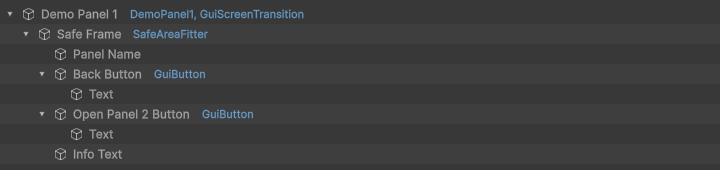
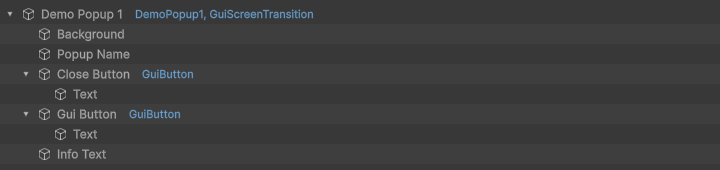
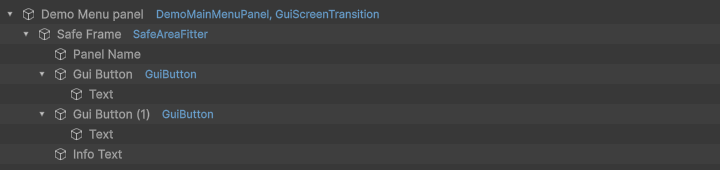
The demo panels (DemoMainMenuPanel, DemoPanel1 to DemoPanel3, DemoPopup1 to DemoPopup4) derive from DemoProjectPanel or DemoProjectPopup, which derive from GuiTweenPanel. They add no fields. DemoGuiManager derives from GuiManager and shows the static Instance pattern.
| Component | Label | Type | Default | Behaviour |
|---|---|---|---|---|
| DemoBounce | Amplitude | float | 20 | Height of the vertical sine movement (local position, units). |
| DemoBounce | Speed | float | 2 | Speed of the movement; each instance starts at a random phase. |
| DemoRotator | Speed | Vector3 | (0, 25, 0) | Rotation in degrees per second around the world axes. |
Inheritance guide #
Which members can be overridden #
Members of GuiPanel and its derived panels:
| Member | Accessibility | Override rule |
|---|---|---|
OnPreOpen(Dictionary<object, object> messages) | protected virtual | Call base.OnPreOpen(messages) to raise the On Pre Open inspector event. messages can be null. |
OnOpened() | protected virtual | Call base to raise On Opened. |
OnPreClose() | protected virtual | Call base to raise On Pre Close. |
OnWillClosed() | protected virtual | Call base to raise On Will Closed. |
StartOpenedAnimation() | protected abstract | Must be implemented in a direct subclass of GuiPanel. Must lead to exactly one call of onPanelChangeProcessIsOver(). |
StartClosedAnimation() | protected abstract | Same for closing. |
PrepareOpen() | protected internal virtual | Override with protected override from your own assembly. Called when the panel is activated, one frame before Open. Put the hidden start state here. |
RunTransition(bool opening, Action<Action> playBuiltin) | protected (not virtual) | Helper for StartOpenedAnimation and StartClosedAnimation, see 3.4. |
UsesBuiltinTransition | protected property | False when a custom transition replaces the built-in one. |
panelChangeProcessing | protected internal field | True while the open or close lifecycle waits for the transition. |
onPanelChangeProcessIsOver | public Action | Invoke it to end the transition. |
onCustomTransition | public event Action<bool, Action> | Subscribe from outside. |
Init(), Open(...), Close() | internal | Not accessible; the manager calls them. |
Members of GuiTweenPanel: PrepareOpen() is protected internal override, StartOpenedAnimation() and StartClosedAnimation() are protected override, and can be overridden again.
Members of GuiAnimatorControlledPanel: TestAnimation(Action finished) and WaitForAnimToFinish(string animationStateName, Action finished) are protected virtual coroutines.
Members of GuiManager:
| Member | Accessibility | Override rule |
|---|---|---|
static GuiManager Instance | public static | Hide it with new in your subclass (see 3.5). |
instance (static field) | protected static | Set in Awake, cleared in OnDestroy when it is this object. |
Awake() | protected (not virtual) | Do not hide it. Override Initializer() instead. |
Initializer() | protected virtual | Called from Awake before the scene change subscription. Base runs SetupInputModules(), registers the External lists, and preloads panels and popups. |
Start(), Update(), OnDestroy(), OnApplicationFocus(bool) | protected virtual | Call base. Update runs the back input check, the transition blocker and the selection watcher. Start opens the initial panel. |
LoadPrefab<T>(Transform root, string id, Dictionary<string, T> loaded) | protected virtual | Generic method with the constraint where T : GuiPanel (inherited, do not repeat it). |
SetupInputModules() | protected virtual | Empty in the base. |
CheckBackInput() | protected virtual | Per frame back input check. |
SetBackInputChecker(bool enabled = true) | public virtual | |
OnClickSelectableItem(IGuiSelectable selectable) | protected virtual | Called when any Gui selectable of a loaded panel reports a user action. |
OnPreOpenPanel, OnPreClosePanel, OnPreOpenPopup, OnPreClosePopup, OnOpenedPanel, OnClosedPanel, OnOpenedPopup, OnClosedPopup (each (string id)) | protected virtual | Call base. The base raises the matching public Action. OnClosedPopup also keeps the popup stack, button locking and the OpenPopup(id, onClosed) callback working. |
Deriving from GuiPanel #
A direct subclass must implement both animation methods. The lifecycle sets panelChangeProcessing to true, calls your Start...Animation, and waits until onPanelChangeProcessIsOver is invoked (when Has Change Process is on). Invoke it exactly once, either at the end of an animation or immediately when there is nothing to animate.
using System.Collections;
using System.Collections.Generic;
using UMU.GuiManager;
using UnityEngine;

public class FadePanel : GuiPanel
{
    public float duration = 0.3f;

    private CanvasGroup group;
    private string title;

    private CanvasGroup Group
    {
        get
        {
            if (group == null)
                group = GetComponent<CanvasGroup>();

            if (group == null)
                group = gameObject.AddComponent<CanvasGroup>();

            return group;
        }
    }

    // Hidden start state, applied when the panel is activated, before the first visible frame.
    protected override void PrepareOpen()
    {
        base.PrepareOpen();
        Group.alpha = 0f;
    }

    protected override void OnPreOpen(Dictionary<object, object> messages)
    {
        base.OnPreOpen(messages); // raises the On Pre Open inspector event

        title = null;

        if (messages != null && messages.TryGetValue("title", out object value))
            title = value as string;
    }

    protected override void OnOpened()
    {
        base.OnOpened();
        Debug.Log("Opened with title: " + title);
    }

    protected override void OnPreClose()
    {
        base.OnPreClose();
    }

    protected override void OnWillClosed()
    {
        base.OnWillClosed();
    }

    protected override void StartOpenedAnimation()
    {
        StartCoroutine(Fade(0f, 1f));
    }

    protected override void StartClosedAnimation()
    {
        StartCoroutine(Fade(1f, 0f));
    }

    private IEnumerator Fade(float from, float to)
    {
        float elapsed = 0f;

        while (elapsed < duration)
        {
            elapsed += Time.unscaledDeltaTime;
            Group.alpha = Mathf.Lerp(from, to, Mathf.Clamp01(elapsed / duration));
            yield return null;
        }

        Group.alpha = to;
        onPanelChangeProcessIsOver(); // exactly once, ends the transition
    }
}
A panel with no animation:
using UMU.GuiManager;

public class InstantPanel : GuiPanel
{
    protected override void StartOpenedAnimation()
    {
        onPanelChangeProcessIsOver();
    }

    protected override void StartClosedAnimation()
    {
        onPanelChangeProcessIsOver();
    }
}
Deriving from GuiTweenPanel #
GuiTweenPanel already plays the GuiScreenTransition and implements both animation methods. Override only the hooks you need. Keep the base calls so the transition and the inspector events keep working.
using System.Collections.Generic;
using UMU.GuiManager;
using UnityEngine;
using UnityEngine.UI;

public class ShopPanel : GuiTweenPanel
{
    public Text coinsLabel;

    protected override void PrepareOpen()
    {
        base.PrepareOpen();
        // refresh content here, before the first visible frame
    }

    protected override void OnPreOpen(Dictionary<object, object> messages)
    {
        base.OnPreOpen(messages);

        if (coinsLabel != null && messages != null && messages.TryGetValue("coins", out object coins))
            coinsLabel.text = coins.ToString();
    }

    protected override void OnOpened()
    {
        base.OnOpened();
        // the open transition has finished
    }

    protected override void OnPreClose()
    {
        base.OnPreClose();
    }

    protected override void OnWillClosed()
    {
        base.OnWillClosed();
    }

    // Optional: extend the open transition. Keep the base call, it ends the transition.
    protected override void StartOpenedAnimation()
    {
        base.StartOpenedAnimation();
    }
}
The panel prefab needs a GuiScreenTransition on the same GameObject (added automatically by RequireComponent).
Custom transitions (onCustomTransition and replaceBuiltinTransition) #
A host script can attach its own animation (for example a DOTween sequence or a coroutine) to any panel that calls RunTransition, which GuiTweenPanel, GuiAnimatorControlledPanel and your own panels can do. The subscriber receives (bool opening, Action finished) and must call finished() once when its animation is over. Until then the panel counts as busy (GuiManager.IsBusy stays true and the transition blocker stays visible).
- With
replaceBuiltinTransitionoff (default), the built-in and the custom transition run in parallel and the lifecycle waits for both. - With
replaceBuiltinTransitionon, only the custom transition runs.
Using RunTransition in your own panel:
using System;
using System.Collections;
using UMU.GuiManager;
using UnityEngine;

public class ScalePanel : GuiPanel
{
    protected override void StartOpenedAnimation()
    {
        // playBuiltin receives the callback to invoke when the built-in part ends.
        RunTransition(true, finished => StartCoroutine(Scale(0f, 1f, finished)));
    }

    protected override void StartClosedAnimation()
    {
        RunTransition(false, finished => StartCoroutine(Scale(1f, 0f, finished)));
    }

    private IEnumerator Scale(float from, float to, Action finished)
    {
        float elapsed = 0f;

        while (elapsed < 0.25f)
        {
            elapsed += Time.unscaledDeltaTime;
            transform.localScale = Vector3.one * Mathf.Lerp(from, to, elapsed / 0.25f);
            yield return null;
        }

        transform.localScale = Vector3.one * to;
        finished();
    }
}
Subscribing from a host script. Put it on an object that stays active (not on the panel itself, because a closed panel is deactivated):
using System;
using System.Collections;
using UMU.GuiManager;
using UnityEngine;

public class ShopPanelDecor : MonoBehaviour
{
    public string panelId = "Shop";
    public RectTransform title;

    private GuiPanel panel;

    private void Start()
    {
        panel = GuiManager.Instance.GetPanelWithId(panelId); // loads the panel when needed

        if (panel == null)
            return;

        panel.replaceBuiltinTransition = true; // the custom transition owns the animation
        panel.onCustomTransition += Play;
    }

    private void OnDestroy()
    {
        if (panel != null)
            panel.onCustomTransition -= Play;
    }

    private void Play(bool opening, Action finished)
    {
        StartCoroutine(Run(opening, finished));
    }

    private IEnumerator Run(bool opening, Action finished)
    {
        float elapsed = 0f;
        float from = opening ? 0f : 1f;
        float to = opening ? 1f : 0f;

        while (elapsed < 0.4f)
        {
            elapsed += Time.unscaledDeltaTime;
            title.localScale = Vector3.one * Mathf.Lerp(from, to, elapsed / 0.4f);
            yield return null;
        }

        title.localScale = Vector3.one * to;
        finished(); // required, exactly once
    }
}
Deriving from GuiManager #
The static Instance pattern hides the base property and casts the protected instance field. instance is assigned in Awake, so use Instance from Start onward or from other objects' Start.
using System.Collections;
using System.Collections.Generic;
using UMU.GuiManager;
using UnityEngine;

public class MyGuiManager : GuiManager
{
    public static new MyGuiManager Instance => (MyGuiManager)instance;

    // Called from Awake. Replaces overriding Awake, which is not virtual.
    protected override void Initializer()
    {
        base.Initializer(); // SetupInputModules, external lists, preloading
        Debug.Log("MyGuiManager initialized");
    }

    protected override void SetupInputModules()
    {
        base.SetupInputModules();
    }

    protected override void Start()
    {
        base.Start(); // opens the initially open panel
    }

    protected override void Update()
    {
        base.Update(); // back input, transition blocker, selection watcher
    }

    protected override void OnDestroy()
    {
        base.OnDestroy();
    }

    protected override void CheckBackInput()
    {
        base.CheckBackInput();
    }

    protected override void OnClickSelectableItem(IGuiSelectable selectable)
    {
        base.OnClickSelectableItem(selectable);
        // for example, play a click sound
    }

    // Panel events. Keep the base call, it raises the public Action events.
    protected override void OnPreOpenPanel(string id) { base.OnPreOpenPanel(id); }
    protected override void OnPreClosePanel(string id) { base.OnPreClosePanel(id); }
    protected override void OnOpenedPanel(string id) { base.OnOpenedPanel(id); }
    protected override void OnClosedPanel(string id) { base.OnClosedPanel(id); }

    // Popup events.
    protected override void OnPreOpenPopup(string id) { base.OnPreOpenPopup(id); }
    protected override void OnPreClosePopup(string id) { base.OnPreClosePopup(id); }
    protected override void OnOpenedPopup(string id) { base.OnOpenedPopup(id); }
    protected override void OnClosedPopup(string id) { base.OnClosedPopup(id); } // keeps popup callbacks and button locking working

    // The default loader uses Resources.Load with the panel id. You can wrap it, for example to log failures.
    protected override T LoadPrefab<T>(Transform root, string id, Dictionary<string, T> loaded)
    {
        T panel = base.LoadPrefab(root, id, loaded);

        if (panel == null)
            Debug.LogWarning("Panel prefab not found: " + id);

        return panel;
    }
}
Loading panels from a source other than Resources (Addressables, asset bundles). Init() is internal, so a LoadPrefab override cannot initialize a panel it instantiated itself. Use RegisterPanel instead, before the first OpenPanel or OpenPopup of that id. Do not call RegisterPanel from inside LoadPrefab: the manager subscribes its panel handlers again after LoadPrefab returns, so they would be subscribed twice.
RegisterPanel(string id, GuiPanel panel, bool isPopup = false) parents the instance under the panel or popup root, initializes it, subscribes the manager events, deactivates it, and returns it. If the id is already registered, the existing panel is returned and the new instance is not used (destroy it yourself).
using System.Collections;
using UMU.GuiManager;
using UnityEngine;

public class MyGuiManager2 : GuiManager
{
    public static new MyGuiManager2 Instance => (MyGuiManager2)instance;

    // Asynchronous loading, then registration, then opening.
    // The same shape works with Addressables: replace the load step with the
    // loaded prefab from your Addressables request.
    public IEnumerator LoadAndOpen(string id, string resourcesPath, bool isPopup)
    {
        if (!(isPopup ? IsLoadedPopup(id) : IsLoadedPanel(id)))
        {
            ResourceRequest request = Resources.LoadAsync<GuiPanel>(resourcesPath);
            yield return request;

            GuiPanel prefab = request.asset as GuiPanel;

            if (prefab == null)
                yield break;

            RegisterPanel(id, Instantiate(prefab), isPopup);
        }

        if (isPopup)
            OpenPopup(id);
        else
            OpenPanel(id);
    }
}
Start it with StartCoroutine(MyGuiManager2.Instance.LoadAndOpen("Shop", "Panels/Shop", false)); from any MonoBehaviour. Without any code, the External Panels and External Popups lists register prefabs by their prefab name at startup.
Opening, closing, messages and popup results #
Messages are an arbitrary Dictionary<object, object>; they reach OnPreOpen(messages) and the On Pre Open inspector event.
using System.Collections.Generic;
using UMU.GuiManager;
using UnityEngine;

public class MenuController : MonoBehaviour
{
    public void OpenShop()
    {
        var messages = new Dictionary<object, object>
        {
            { "coins", 120 },
            { "title", "Shop" }
        };

        GuiManager.Instance.OpenPanel("Shop", messages);
    }

    public void Back()
    {
        GuiManager.Instance.BackToPreviousPanel();
    }

    public void AskQuit()
    {
        // The callback runs when the popup has closed. It receives the popup panel;
        // read panel.result for the value the popup stored before closing.
        GuiManager.Instance.OpenPopup("ConfirmQuit", popup =>
        {
            bool confirmed = popup.result is bool answer && answer;

            if (confirmed)
                Application.Quit();
        });
    }
}
The popup stores its result and closes itself with its own id:
using UMU.GuiManager;

public class ConfirmQuitPopup : GuiTweenPanel
{
    // Assign these methods to the OnClick events of the buttons.
    public void Yes()
    {
        result = true;
        GuiManager.Instance.ClosePopup(id);
    }

    public void No()
    {
        result = false;
        GuiManager.Instance.ClosePopup(id);
    }
}
Notes:
- There is one pending
onClosedcallback per popup id; opening the same popup again with a new callback replaces the previous one. The callback runs once, and the manager does not changeresultitself. OpenPopup(id, messages)andOpenPopup(id, onClosed, messages)are the two overloads. PassonClosedas a lambda or method group; passing a barenullas the second argument is ambiguous.- Other calls:
ClosePopup(id),CloseTopPopup(),CloseAllPopup(bool removeAllRequestToOpenPopups = false),CloseCurrentPanel(),GetCurrentPanelId(),GetPreviousPanelId(),GetTopPopupId(),GetOpenedPopupIds(),HasOpenPopup,OpenPopupCount,IsBusy,PreloadPanel(id),PreloadPopup(id),SetInitiallyOpen(panelId, preloadPanelIds, preloadPopupIds)(call before the manager'sStartfor the initial panel). - A Gui selectable created at runtime inside a loaded panel is not known to the panel. Register it with
panel.SelectableItemReInitialize(selectableComponent). - Closing a popup from a derived
GuiPanelusesGuiManager.Instance.ClosePopup(id);idis assigned by the manager when the panel is loaded or registered.
4. Audio #
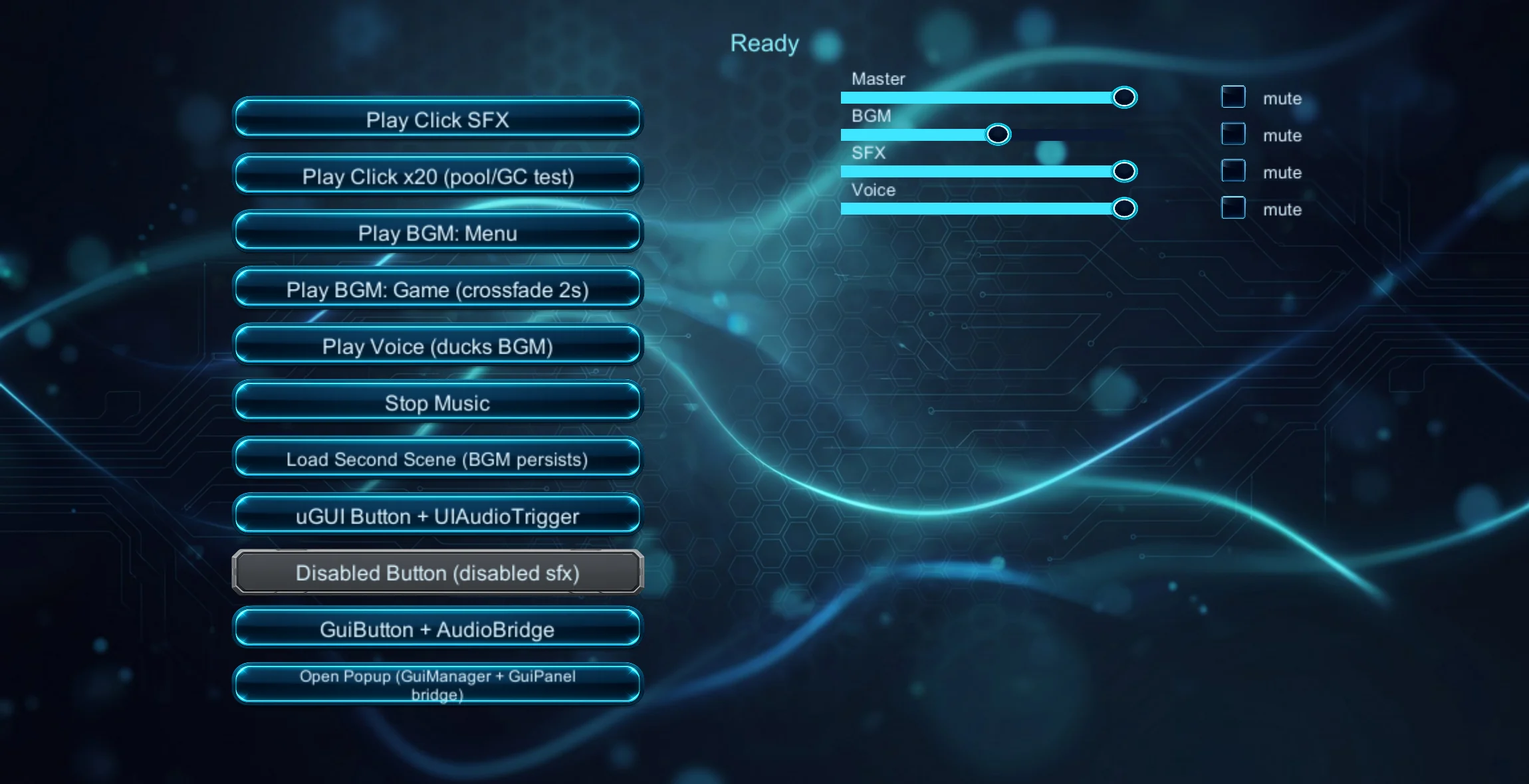
The Audio module provides a pooled SFX player, a dual-source BGM player with crossfade, a voice channel, a dedicated UI channel, AudioMixer routing, linear to decibel volume control, persisted volume and mute state, and platform pause handling. Sounds are played by string id from an AudioDatabase, so game code never binds AudioClip assets directly.
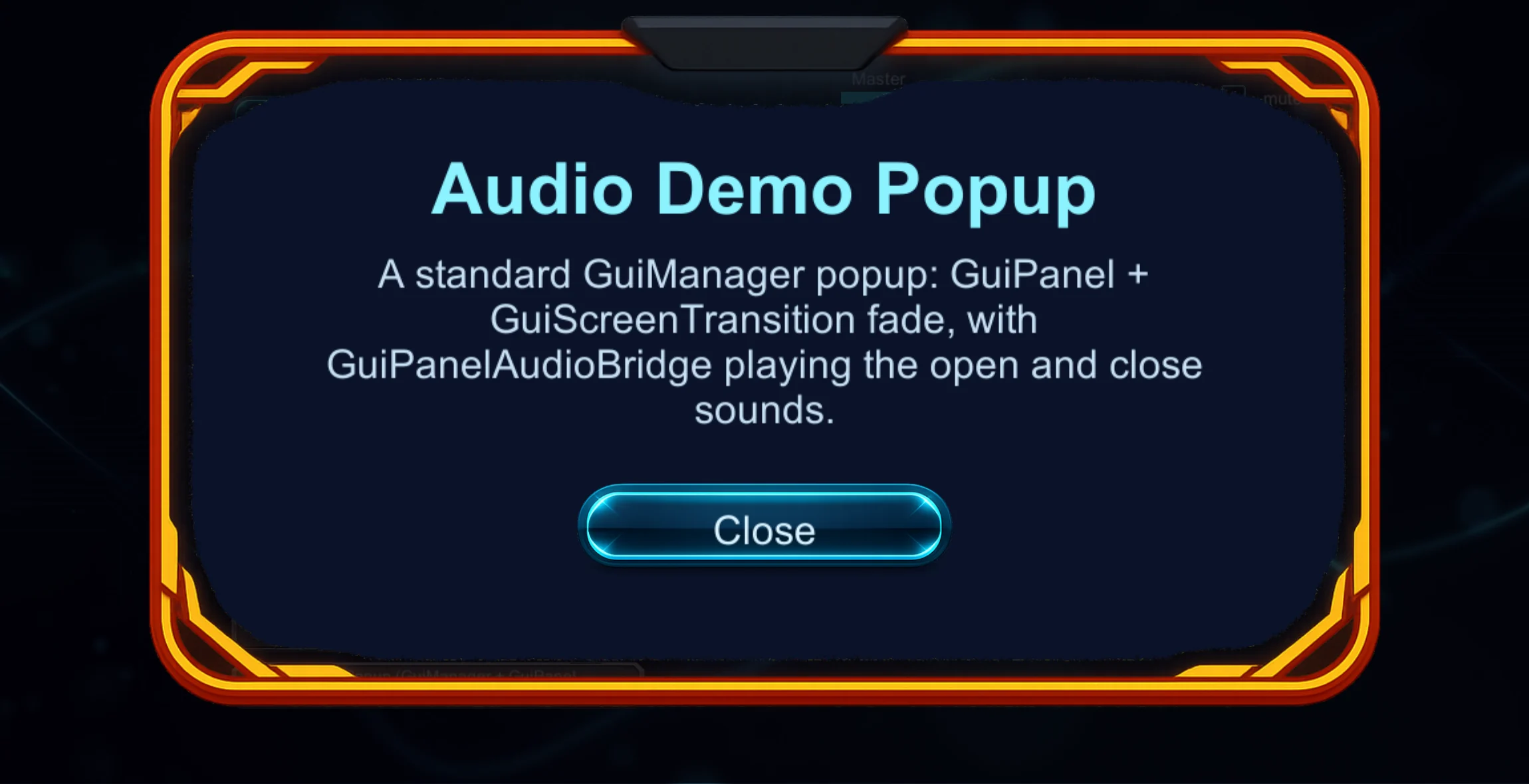
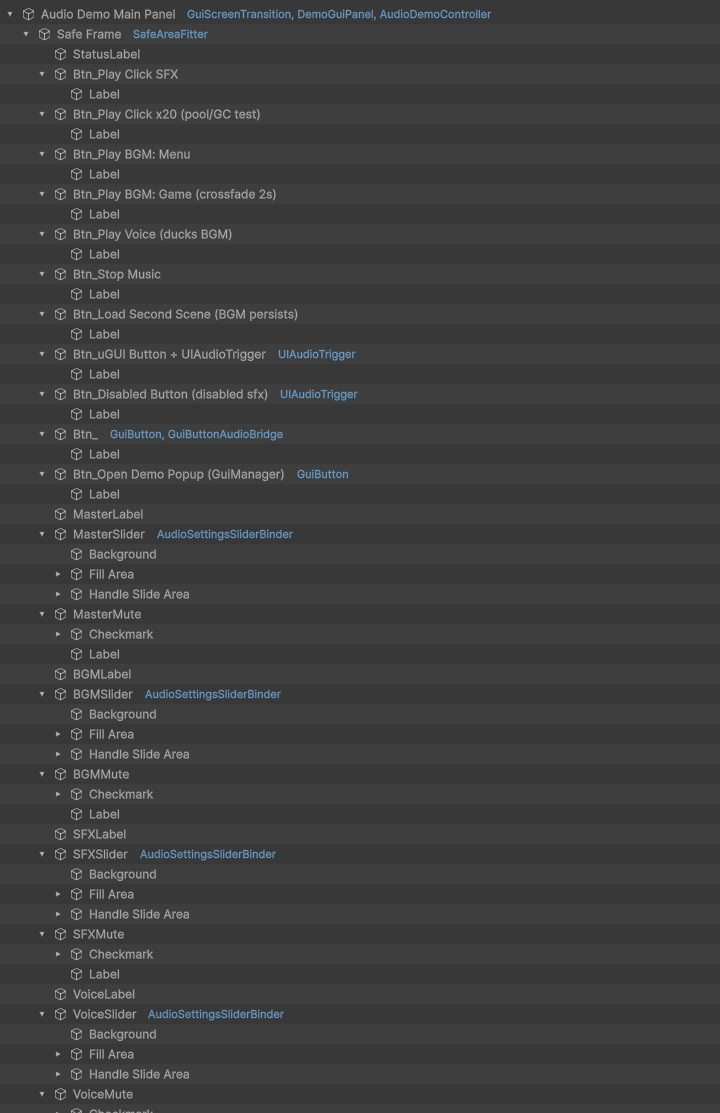

Editor menu and window reference #
| Menu item | What it does | Default | Notes |
|---|---|---|---|
UMU > Audio > Create UMU Main Mixer | Creates the reference mixer asset UmuMainMixer at Assets/UMU/Audio/Mixer/UmuMainMixer.mixer. | Path is fixed. | If an asset already exists at that path it is reused and nothing is changed. See the mixer layout below. |
UMU > Audio > Create Audio Import Config | Opens a save dialog (title "Create Audio Import Config", default name AudioImportConfig, extension asset) and creates an AudioImportConfig asset with three starter rules. | Rules for Assets/Audio/Music/, Assets/Audio/SFX/, Assets/Audio/Voice/. | The new asset is selected after creation. |
UMU > Audio > Audio Cutter | Opens the Audio Cutter window. See section 2. | ||
Assets > UMU > Audio Cutter | Same window, from the Project window context menu. | Enabled only when the selected asset is an AudioClip. | |
Add Component > UMU > Audio > Audio Manager | Adds AudioManager. | ||
Add Component > UMU > Audio > Audio Settings Slider Binder | Adds AudioSettingsSliderBinder. | Requires a Slider on the same object. | |
Add Component > UMU > Audio > GuiButton Audio Bridge | Adds GuiButtonAudioBridge. | Requires a GuiButton on the same object. | |
Add Component > UMU > Audio > GuiPanel Audio Bridge | Adds GuiPanelAudioBridge. | Requires a GuiPanel on the same object. | |
Add Component > UMU > Audio > UI Audio Trigger | Adds UIAudioTrigger. | ||
Assets > Create > UMU > Audio > Audio Database | Creates an AudioDatabase asset. | File name AudioDatabase. |
UmuMainMixer layout. The Master group contains four child groups: BGM, SFX, Voice, UI. The snapshot is named Normal. The BGM group has a Duck Volume effect (Threshold -20, Ratio 4, Attack Time 100, Release Time 500, Make-up Gain 0, Knee 10). The Voice group has a Send to the duck effect at 0 dB and the SFX group has a Send at -6 dB, so voice and SFX duck the music. Five volume parameters are exposed: MasterVolume, BGMVolume, SfxVolume, VoiceVolume, UIVolume. The mixer is built through Unity internal editor classes (reflection). If the Duck Volume effect cannot be created, the mixer is built without ducking and a warning is logged.
Audio import automation. AudioImportPostprocessor applies the first rule of the AudioImportConfig whose path prefix matches the imported audio file. It runs only on the first import of a file (when Unity has no stored importer settings yet). A file that was already imported keeps its settings. The first AudioImportConfig asset found in the project is used.
[AudioId] drawer. String fields marked [AudioId(channel)] are drawn as a dropdown filled from every AudioDatabase asset in the project (cached for 2 seconds). The channel selects the list: BGM lists BGM ids, Voice lists voice ids, every other channel lists SFX ids. The first entry is (none) and stores an empty string. A stored id that no database defines stays visible as <id> (missing). When no database defines any id for the channel, the plain text field is shown with an info box "No AudioDatabase ids found".
[AudioCategory] drawer. String fields marked [AudioCategory] are drawn as a dropdown of the categories list of the owning AudioDatabase. An empty list falls back to AudioCategories.Defaults. A stored value that is not in the list is shown as <value> (missing) (or (none) when empty).
Inspector reference #
AudioManager #
Persistent singleton (AudioManager.Instance). Placing it in the first scene is optional: if no instance exists after the first scene has loaded, a GameObject named "UMU AudioManager" is created automatically. A scene-placed instance always wins. A duplicate instance is destroyed. The object is moved to the root and marked DontDestroyOnLoad.
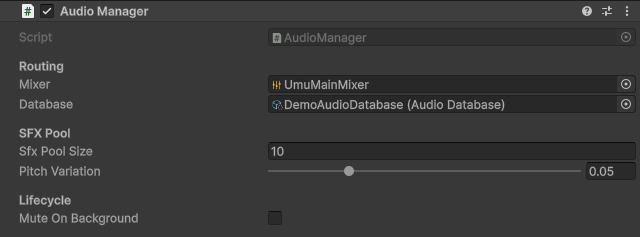

| Label | Type | Default | Behaviour |
|---|---|---|---|
| Mixer (header Routing) | AudioMixer | none | Mixer that routes the channels. If empty, the manager loads UMU/Audio/UmuMainMixer from a Resources folder. In the Editor it then also tries Assets/UMU/Audio/Mixer/UmuMainMixer.mixer. Without a mixer, volumes are applied as source gains (Master through the listener volume). |
| Database (header Routing) | AudioDatabase | none | Sound catalogue. If empty, the manager loads UMU/Audio/AudioDatabase from a Resources folder. |
| Sfx Pool Size (header SFX Pool) | int, minimum 1 | 10 | Number of pooled SFX sources. When all are busy, sources are stolen in turn. |
| Pitch Variation (header SFX Pool) | float, 0 to 0.2 | 0.05 | Random pitch of plus or minus this value, used only for SFX entries whose Pitch Range is (1, 1). |
| Mute On Background (header Lifecycle) | bool | false | When on, the whole AudioListener is paused when the app loses focus or is paused. When off, every managed source is paused and resumed individually. |
Runtime facts:
- Sources: two BGM sources (crossfade), one voice source, 4 UI sources (child "UI Pool"),
Sfx Pool SizeSFX sources (child "SFX Pool"). Each source is routed to the mixer group with the channel name (Master,BGM,SFX,Voice,UI). - Volumes and mute states are saved to the file
umu_audio_settings.jsonthrough the UMU save manager. Saving is delayed by 0.5 seconds after the last change, and also happens on pause, focus loss, destroy and quit (FlushSettings()). - Persisted volumes are re-applied once on the frame after
Awake. - Linear volume (0 to 1) is converted to decibels with
AudioManager.LinearToDb: values at or below 0.0001 give -80 dB, otherwise20 * log10(value)clamped to the range -80 to 0. - Mixer parameter names are available as constants:
ParamMasterVolume("MasterVolume"),ParamBgmVolume("BGMVolume"),ParamSfxVolume("SfxVolume"),ParamVoiceVolume("VoiceVolume"),ParamUiVolume("UIVolume").
Public API:
| Member | Description |
|---|---|
static AudioManager Instance | The active manager, or null before bootstrap. |
AudioMixer Mixer, AudioDatabase Database | Current references (read only). |
void SetDatabase(AudioDatabase) | Replaces the database. |
void SetMixer(AudioMixer) | Replaces the mixer, re-routes all sources and re-applies volumes. |
void PlaySfx(AudioClip clip, float volume = 1f) | Plays a clip on the SFX pool. |
void PlaySfxById(string id) | Plays a database SFX entry on the SFX channel. |
void PlayUiSfx(string id) | Plays a database SFX entry on the UI channel. |
void StopAllSfx() | Stops the SFX pool sources. |
void PlayMusic(AudioClip clip, bool loop = true) | Crossfades to a clip over 1 second. |
void PlayMusicById(string id, float crossfadeSeconds = 1f) | Crossfades to a BGM entry. Playing the clip that is already playing (or fading in) does nothing. |
void StopMusic() | Stops both BGM sources. |
void PlayVoice(AudioClip clip, float volume = 1f) | Plays on the single voice source (replaces the current voice line). |
void PlayVoiceById(string id) | Plays a database voice entry. |
void SetMasterVolume / SetBgmVolume / SetSfxVolume / SetVoiceVolume / SetUiVolume(float linear01) | Set and persist a channel volume. |
void SetVolume(AudioChannel, float linear01) | Same, with a channel argument. The value is clamped to 0..1. |
float GetVolume(AudioChannel) | Persisted linear volume. |
void SetMuted(AudioChannel, bool) / bool IsMuted(AudioChannel) | Mute state per channel (the volume value is kept). |
void FlushSettings() | Writes pending changes to disk immediately. |
static float LinearToDb(float linear01) | Linear to decibel conversion. |
PlaySfxById, PlayUiSfx, PlayMusicById, PlayVoiceById do nothing when the id is empty, unknown, has no clip, or no database is assigned. The crossfade uses unscaled time, so it also finishes while Time.timeScale is 0.
AudioChannel (enum) #
Master, BGM, SFX, Voice, UI.
AudioCategories (static class) #
Constants UI ("UI"), Gameplay, Ambient, Notification, and the array Defaults containing all four. Categories are plain strings, so a project can use any names.
AudioDatabase (ScriptableObject) #
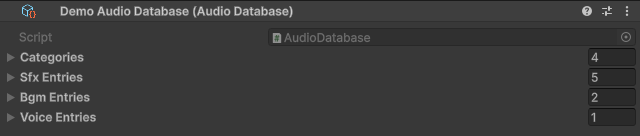
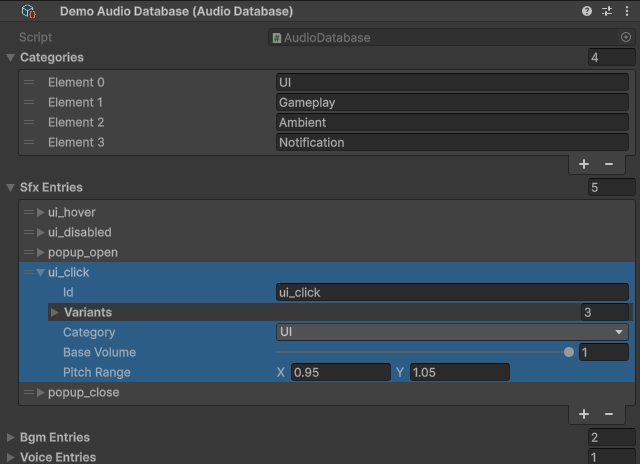
| Label | Type | Default | Behaviour |
|---|---|---|---|
| Categories | list of string | UI, Gameplay, Ambient, Notification | Category names offered by the Category dropdown of SFX entries. |
| Sfx Entries | array of SfxEntry | empty | SFX definitions. |
| Bgm Entries | array of BgmEntry | empty | Music definitions. |
| Voice Entries | array of VoiceEntry | empty | Voice line definitions. |
Lookups are built lazily and rebuilt in OnValidate. A duplicate id inside one array logs a warning in the Console and the later entry wins. API: SfxEntry GetSfx(string id), BgmEntry GetBgm(string id), VoiceEntry GetVoice(string id) (return null for an empty or unknown id), void BuildLookups() (call it after changing the entry arrays from code).
SfxEntry #
| Label | Type | Default | Behaviour |
|---|---|---|---|
| Id | string | empty | Stable id used to play the sound. |
| Variants | array of AudioClip | empty | One variant is picked at random on every play. An entry without variants (or with a null picked clip) is silent. |
| Category | string (dropdown) | "UI" | Category label from the database list. Informational. |
| Base Volume | float, 0 to 1 | 1 | Volume multiplier of the entry. |
| Pitch Range | Vector2 | (1, 1) | Random pitch between X and Y. (1, 1) means "use the manager's Pitch Variation". Keep values within about 0.1 of 1 to avoid a robotic sound. |
BgmEntry #
| Label | Type | Default | Behaviour |
|---|---|---|---|
| Id | string | empty | Id used by PlayMusicById. |
| Clip | AudioClip | none | Music clip. |
| Loop | bool | true | Whether the music loops. |
VoiceEntry #
| Label | Type | Default | Behaviour |
|---|---|---|---|
| Id | string | empty | Id used by PlayVoiceById. |
| Clip | AudioClip | none | Voice clip. |
| Base Volume | float, 0 to 1 | 1 | Volume multiplier. |
UmuAudioSettings (serializable class, persisted state) #
Fields masterVolume, bgmVolume, sfxVolume, voiceVolume, uiVolume (float, default 1) and masterMuted, bgmMuted, sfxMuted, voiceMuted, uiMuted (bool, default false). Methods GetVolume/SetVolume/GetMuted/SetMuted(AudioChannel ...), static Load(string fileName), Save(string fileName).
AudioSettingsSliderBinder #
Requires a Slider. On enable the slider snaps to the persisted volume (retried in Start because the lazy manager may appear after OnEnable). Moving the slider sets and saves the volume. Any slider min/max range is mapped onto 0..1.

| Label | Type | Default | Behaviour |
|---|---|---|---|
| Channel | AudioChannel | Master | Channel controlled by the slider. |
| Mute Toggle | Toggle | none | Optional. Switching it on mutes the channel without changing the slider value. |
GuiButtonAudioBridge #
Requires a GuiButton. Plays on the UI channel. The hover sound is skipped for touch input and for non interactable buttons.

| Label | Type | Default | Behaviour |
|---|---|---|---|
| Click Sfx Id | string ([AudioId] SFX) | "ui_click" | Played when the button is clicked. Empty means silent. |
| Hover Sfx Id | string ([AudioId] SFX) | empty | Played when the pointer enters the button. Empty means silent. |
GuiPanelAudioBridge #
Requires a GuiPanel. Plays on the UI channel. Every transition has a "Pre" slot (starts together with the animation) and a "Post" slot (when the animation has finished). Any slot may stay empty.
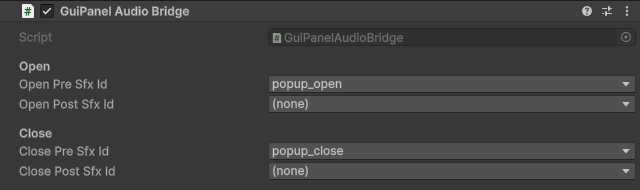
| Label | Type | Default | Behaviour |
|---|---|---|---|
| Open Pre Sfx Id | string ([AudioId] SFX) | "popup_open" | Plays when the open animation starts. |
| Open Post Sfx Id | string ([AudioId] SFX) | empty | Plays when the open animation has finished. |
| Close Pre Sfx Id | string ([AudioId] SFX) | "popup_close" | Plays when the close animation starts. |
| Close Post Sfx Id | string ([AudioId] SFX) | empty | Plays when the close animation has finished, right before the panel is deactivated. |
UIAudioTrigger #
Works on any uGUI element (it implements the pointer click and enter handlers). If a Selectable is on the same object, its interactable state is honoured (including a parent CanvasGroup). Plays on the UI channel. Hover is ignored for touch input.

| Label | Type | Default | Behaviour |
|---|---|---|---|
| Click Sfx Id | string ([AudioId] SFX) | empty | Played on click. |
| Hover Sfx Id | string ([AudioId] SFX) | empty | Played when the pointer enters. |
| Disabled Sfx Id | string ([AudioId] SFX) | empty | Played instead of the click sound when the Selectable is not interactable. |
AudioImportConfig (editor ScriptableObject, namespace UMU.EditorTools.Audio) #
| Label | Type | Default | Behaviour |
|---|---|---|---|
| Rules | array of PathRule | empty (3 starter rules when created from the menu) | Checked in order. The first rule whose pathPrefix matches (case insensitive) is applied. |
PathRule fields:
| Label | Type | Default | Behaviour |
|---|---|---|---|
| Path Prefix | string | empty | Asset path prefix, for example Assets/Audio/Music/. An empty prefix never matches. |
| Load Type | AudioClipLoadType | DecompressOnLoad | Applied to the default sample settings. |
| Compression Format | AudioCompressionFormat | Vorbis | Applied to the default sample settings. |
| Quality | float, 0 to 1 | 0.85 | Compression quality. |
| Preload Audio Data | bool | true | Preload flag of the importer. |
| Load In Background | bool | false | Loads the clip on a separate thread. |
Starter rules created by the menu item:
| Path prefix | Load type | Compression | Quality | Preload | Background |
|---|---|---|---|---|---|
Assets/Audio/Music/ | Streaming | Vorbis | 0.75 | off | on |
Assets/Audio/SFX/ | DecompressOnLoad | Vorbis | 0.85 | on | off |
Assets/Audio/Voice/ | DecompressOnLoad | Vorbis | 0.80 | on | on |
Code examples #
Playing sounds, reading and writing volumes:
using UnityEngine;
using UMU.Audio;

public class AudioExample : MonoBehaviour
{
    [AudioId(AudioChannel.SFX)] [SerializeField] private string coinSfxId = "coin";
    [AudioId(AudioChannel.BGM)] [SerializeField] private string menuMusicId = "menu_theme";
    [AudioId(AudioChannel.Voice)] [SerializeField] private string greetingVoiceId = "greeting";
    [SerializeField] private AudioClip directClip;

    private void Start()
    {
        // Instance can be null in Awake (the lazy instance appears after the first scene loads).
        AudioManager audio = AudioManager.Instance;
        if (audio == null)
            return;

        audio.PlayMusicById(menuMusicId, 2f);   // 2 second crossfade
        audio.PlayVoiceById(greetingVoiceId);
        audio.PlaySfx(directClip, 0.8f);        // direct clip, no database lookup
    }

    public void OnCoinCollected()
    {
        AudioManager.Instance?.PlaySfxById(coinSfxId);
        // UI channel (follows the UI volume):
        AudioManager.Instance?.PlayUiSfx("ui_click");
    }

    public void ApplyMusicVolumeFromSlider(float value01)
    {
        AudioManager.Instance?.SetBgmVolume(value01);   // persisted automatically
    }

    public void ToggleSfxMute()
    {
        AudioManager audio = AudioManager.Instance;
        if (audio == null)
            return;

        audio.SetMuted(AudioChannel.SFX, !audio.IsMuted(AudioChannel.SFX));
        Debug.Log("SFX volume: " + audio.GetVolume(AudioChannel.SFX) + ", muted: " + audio.IsMuted(AudioChannel.SFX));
        audio.FlushSettings();                          // write to disk now
    }

    public void StopEverything()
    {
        AudioManager.Instance?.StopMusic();
        AudioManager.Instance?.StopAllSfx();
    }
}
Building a database in code and assigning it at runtime (a mixer can be assigned the same way with SetMixer):
using UnityEngine;
using UMU.Audio;

public class RuntimeDatabaseExample : MonoBehaviour
{
    [SerializeField] private AudioClip[] jumpVariants;
    [SerializeField] private AudioClip levelMusic;

    private void Start()
    {
        AudioDatabase db = ScriptableObject.CreateInstance<AudioDatabase>();
        db.sfxEntries = new[]
        {
            new SfxEntry
            {
                id = "jump",
                variants = jumpVariants,
                category = AudioCategories.Gameplay,
                baseVolume = 0.9f,
                pitchRange = new Vector2(0.95f, 1.05f)
            }
        };
        db.bgmEntries = new[] { new BgmEntry { id = "level", clip = levelMusic, loop = true } };
        db.BuildLookups();

        AudioManager.Instance.SetDatabase(db);
        AudioManager.Instance.PlayMusicById("level");
        AudioManager.Instance.PlaySfxById("jump");
    }
}
AudioManager has no virtual members and its lifecycle methods are private, so extend it by composition. A facade that exposes game specific operations:
using UnityEngine;
using UMU.Audio;

public static class GameAudio
{
    public static void PlayPurchase()
    {
        AudioManager audio = AudioManager.Instance;
        if (audio == null)
            return;

        audio.PlayUiSfx("purchase");
    }

    public static void SetAllVolumes(float value01)
    {
        AudioManager audio = AudioManager.Instance;
        if (audio == null)
            return;

        foreach (AudioChannel channel in System.Enum.GetValues(typeof(AudioChannel)))
            audio.SetVolume(channel, value01);
    }
}
AudioDatabase is not sealed, so a project can derive a database type with extra data. The manager accepts it through SetDatabase or the Inspector field:
using System.Collections.Generic;
using UnityEngine;
using UMU.Audio;

[CreateAssetMenu(fileName = "GameAudioDatabase", menuName = "MyGame/Game Audio Database")]
public class GameAudioDatabase : AudioDatabase
{
    public List<string> footstepIds = new List<string> { "step_a", "step_b" };

    public string RandomFootstepId()
    {
        return footstepIds.Count == 0 ? null : footstepIds[Random.Range(0, footstepIds.Count)];
    }
}
Custom component that binds a volume slider and reacts to the stored value:
using UnityEngine;
using UnityEngine.UI;
using UMU.Audio;

public class VolumeLabel : MonoBehaviour
{
    [SerializeField] private Slider slider;
    [SerializeField] private Text label;

    private void Update()
    {
        AudioManager audio = AudioManager.Instance;
        if (audio == null || label == null)
            return;

        label.text = Mathf.RoundToInt(audio.GetVolume(AudioChannel.Master) * 100f) + " %";
    }
}
5. Audio Cutter #
Splits an audio clip into equal pieces measured in musical beats, optionally appends a short amplified bridging piece to each cut, and saves the pieces as WAV files or as OGG files (through an external encoder).
Editor menu and window reference #
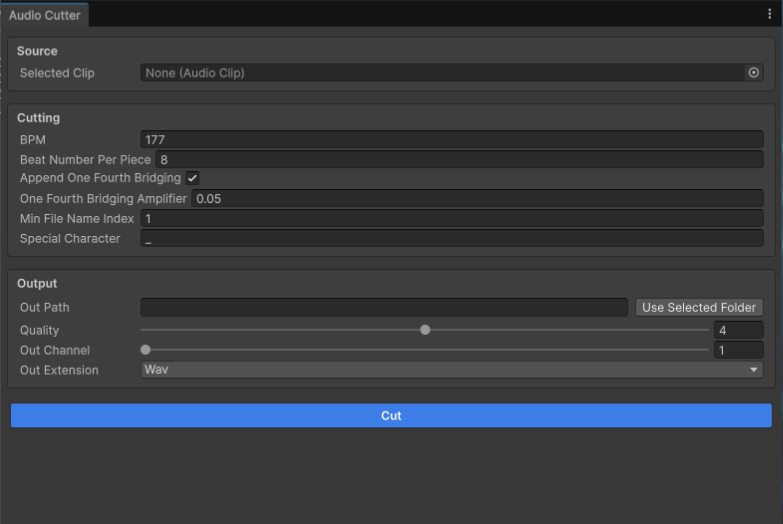
| Menu item | Description |
|---|---|
UMU > Audio > Audio Cutter | Opens the window titled "Audio Cutter". |
Assets > UMU > Audio Cutter | Same window from the Project window context menu. Enabled only when the selected asset is an AudioClip. |
The window follows the Project selection: selecting an AudioClip asset automatically puts it into "Selected Clip". The window is divided into three sections.
Source
| Field | Type | Default | Behaviour |
|---|---|---|---|
| Selected Clip | AudioClip object field | none | Clip to cut. A clip must be set before pressing Cut. |
Cutting
| Field | Type | Default | Behaviour |
|---|---|---|---|
| BPM | float | 177 | Tempo. One beat lasts 60 / BPM seconds. |
| Beat Number Per Piece | float | 8 | Length of each piece in beats. |
| Append One Fourth Bridging | toggle | on | Appends to every piece a bridging part of one quarter of a beat, taken from the start of the following piece. |
| One Fourth Bridging Amplifier | float | 0.05 | Gain applied to the bridging part. Visible only when the toggle above is on. |
| Min File Name Index | int | 1 | Number of the first output file. |
| Special Character | text, one character | _ | Separator between the clip name and the index. An empty value becomes _. |
Output
| Field | Type | Default | Behaviour |
|---|---|---|---|
| Out Path | text + button "Use Selected Folder" | empty | Output folder, relative to the project Assets folder (for example Audio\Pieces). "Use Selected Folder" takes the folder currently selected in the Project window. |
| Quality | slider, -2 to 10 | 4 | Vorbis quality passed to the encoder. Used for OGG output only. |
| Out Channel | slider, 1 to 2 | 1 | With OGG output, 1 downmixes multi-channel sources to mono and 2 keeps the channels. Used for OGG output only. |
| Out Extension | enum wav, ogg | wav | Output format. |
| Ogg Encoder (oggenc) | text + button "Browse" | empty | Path of an external oggenc executable (vorbis-tools or oggenc2). Visible only when Out Extension is ogg. UMU does not ship an encoder. |
Button Cut runs the operation.
Behaviour details:
- File names are
<clip name><special character><two digit index>, for exampletrack_01.wav,track_02.wav. Indexes below 10 are padded with a zero. - The WAV file is always written first (16 bit PCM, source sample rate and channel count).
- With OGG output the encoder is called for each piece with the arguments: input wav,
-ooutput ogg,--downmix(only when Out Channel is 1 and the source has more than one channel),-q <Quality>,--resample 44100,-Q,--discard-comments. - Encoder lookup: the "Ogg Encoder (oggenc)" path if the file exists, otherwise
oggenc2and thenoggenc(with and without.exe) on thePATH. If none is found, a dialog asks to set the path, add the encoder to thePATH, or switch towav, and nothing is cut. - With OGG output, the intermediate
.wavfiles written by the current run are deleted after encoding. Other files in the output folder are never touched. - A progress bar is shown while cutting. Pressing Cancel on it stops the cut after the current piece. When finished, the window settings are saved, the AssetDatabase is refreshed and the window closes.
- The settings of the window are remembered between sessions.
Inspector reference #
The Audio Cutter has no component or ScriptableObject. All options are in the window described above. The runtime helper classes are listed in the code examples.
Code examples #
The same helpers the window uses are public and can be used from code (for example inside an editor script):
using System.Collections.Generic;
using System.IO;
using UnityEngine;
using UMU.AudioCutter;

public static class CutterApiExample
{
    // Cut the first half of a clip, append a quiet copy of the next 10 percent and save as WAV.
    public static void CutAndSave(AudioClip source, string folder)
    {
        AudioClip main = AudioUtility.Cut(source, 0f, 0.5f);              // start/end as 0..1 ratios
        AudioClip bridge = AudioUtility.Cut(source, 0.5f, 0.6f, 0.05f);    // last argument: amplifier
        AudioClip joined = AudioUtility.AppendClips(new List<AudioClip> { main, bridge });

        bool saved = AudioClipManager.Save(joined, source.name + "_part", folder, ".wav");
        Debug.Log(saved ? "Saved to " + Path.Combine(folder, source.name + "_part.wav") : "Nothing saved");
    }

    // Remove leading and trailing silence (samples at or below the threshold).
    public static AudioClip Trim(AudioClip clip)
    {
        return clip.TrimSilence(0.001f);
    }
}
Other public helpers: AudioUtility.RemoveDataRange(clip, fromRatio, toRatio), AudioUtility.RemoveDataExceptRange(clip, fromRatio, toRatio), AudioUtility.CreateSpeakerSpecificClip(clip, channels, targetChannel), AudioUtility.DrawWaveForm(clip, width, height, waveColor, backColor, samplesStep, channelIndex).
6. Messenger #
A small mailbox plus push notification system for passing data between objects and across scene loads. Messages are stored with a lifetime, and listeners can additionally subscribe to be called immediately.
Editor menu and window reference #
The Messenger has no menu items, windows or wizards. The Messenger MonoBehaviour is created automatically (object name UMU_Messenger) the first time Messenger.Instance is used and no instance exists in the scene. It is marked DontDestroyOnLoad.
Inspector reference #
The Messenger has no serialized fields.
Message.Lifetime (enum nested in the Message struct):
| Value | Meaning |
|---|---|
Indefinitely | The message stays in the mailbox until it is received with removal. |
ActualScene | The message is dropped when a scene other than the one it was sent in is loaded. |
NextScene | The message survives the first scene change after sending and is dropped on the next one (so it is available in the following scene). |
Message fields: lifetime, id, actualScene, nextSceneLoaded, data.
Public API of Messenger:
| Member | Description |
|---|---|
static Messenger Instance | Finds or creates the messenger. |
void SendMessage(string id, Message.Lifetime lifetime, Hashtable messageData) | Stores a message with a Hashtable payload and notifies subscribers. |
void SendMessage<T>(string id, Message.Lifetime lifetime, T messageData) | Stores a message with a typed payload and notifies subscribers. |
IDisposable Subscribe<T>(string id, Action<T> handler) | Calls the handler immediately whenever a message with this id and a payload of type T is sent. Dispose the result to unsubscribe. Returns null if the id is empty or the handler is null. A throwing handler is logged and does not stop the other subscribers. |
List<Hashtable> ReceiveMessage(string id, bool removeMessage = true) | Returns the Hashtable payloads of all messages with the id. |
List<T> ReceiveMessages<T>(string id, bool removeMessage = true) | Returns all payloads of type T with the id. |
Receiving removes the matched messages from the mailbox by default (removeMessage = true). A warning is logged when no message with the id exists. Subscribing does not remove anything: a sent message still lives in the mailbox with its lifetime. When Debug Mode is on, messages dropped on scene load are logged.
Code examples #
using System;
using System.Collections;
using System.Collections.Generic;
using UnityEngine;
using UMU.Messenger;

public class ScoreSender : MonoBehaviour
{
    public void SendScore(int score)
    {
        // Typed payload, available to the next scene as well.
        Messenger.Instance.SendMessage<int>("score", Message.Lifetime.NextScene, score);
    }

    public void SendPlayerInfo()
    {
        var data = new Hashtable();
        data["name"] = "Anna";
        data["level"] = 7;
        Messenger.Instance.SendMessage("player_info", Message.Lifetime.ActualScene, data);
    }
}

public class ScoreReceiver : MonoBehaviour
{
    private IDisposable scoreSubscription;

    private void OnEnable()
    {
        // Push style: called immediately when "score" is sent.
        scoreSubscription = Messenger.Instance.Subscribe<int>("score", OnScore);
    }

    private void OnDisable()
    {
        scoreSubscription?.Dispose();
        scoreSubscription = null;
    }

    private void OnScore(int score)
    {
        Debug.Log("Score received: " + score);
    }

    private void Start()
    {
        // Mailbox style: read what was sent earlier (removes it from the mailbox).
        List<int> scores = Messenger.Instance.ReceiveMessages<int>("score");
        foreach (int s in scores)
            Debug.Log("Stored score: " + s);

        // Peek without removing:
        List<Hashtable> info = Messenger.Instance.ReceiveMessage("player_info", false);
        if (info.Count > 0)
            Debug.Log("Player: " + info[0]["name"]);
    }
}

public class TemporarySubscription : MonoBehaviour
{
    private void Start()
    {
        // using block: subscribed only for the duration of the block.
        using (IDisposable sub = Messenger.Instance.Subscribe<string>("chat", text => Debug.Log(text)))
        {
            Messenger.Instance.SendMessage<string>("chat", Message.Lifetime.ActualScene, "hello");
        }
    }
}
7. Logger #
The Logger module contains UMU.Development.Logger (an event based logger), the LogEntry data type and the Logger Console editor window. The window shows both Unity console messages and messages sent through Logger.Log.
Note: in code, the names Logger and LogType also exist in UnityEngine. When both namespaces are imported, qualify the UMU types (for example UMU.Development.Logger) or use a using alias.
Editor menu and window reference #
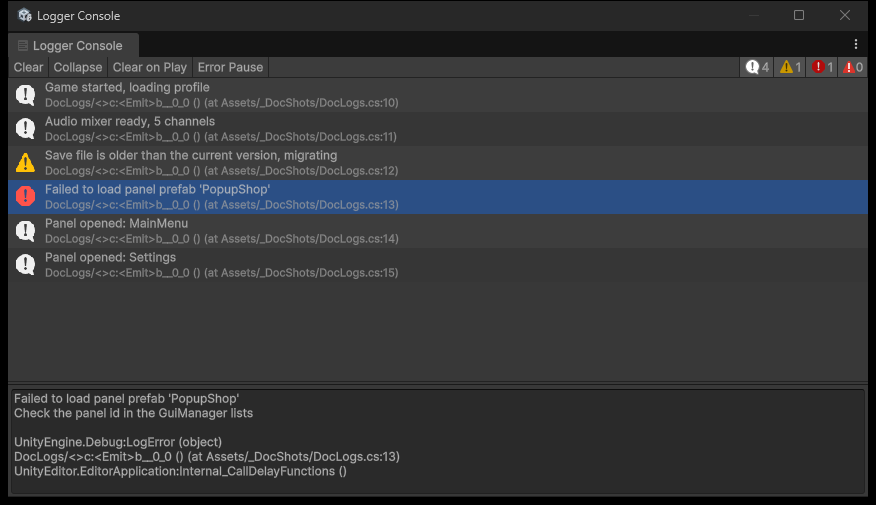
| Menu item | Description |
|---|---|
UMU > Development > Logger Console | Opens the "Logger Console" window. |
The window records entries only while it is open. Its content is stored between play mode changes.
Toolbar controls (left to right):
| Control | Behaviour |
|---|---|
| Clear (button) | Removes all entries. |
| Collapse (toggle) | When on, an entry with the same type and message as the entry shown directly before it is hidden. |
| Clear on Play (toggle) | When on, all entries are removed every time the Editor enters Play mode. |
| Error Pause (toggle) | When on, the Editor pauses (Play mode) as soon as an Error, Assert or Exception entry arrives. |
| Log counter (toggle, info icon) | Shows the number of Log entries (999+ above 999). When off, Log entries are hidden from the list. On by default. |
| Warning counter (toggle, warning icon) | Number of Warning entries. When off, Warning entries are hidden. On by default. |
| Error counter (toggle, error icon) | Number of Error entries. When off, Error and Assert entries are hidden. On by default. |
| Exception counter (toggle, error icon) | Number of Exception entries. When off, Exception entries are hidden. On by default. |
The toggle states are kept in the Editor preferences (keys with the prefix UMU_LOGGER_). The console collects entries while its window is open, so open it before you start the game to capture everything.
List behaviour:
| Action | Result |
|---|---|
| Click an entry | Selects it and highlights the script asset that produced it in the Project window. |
| Double click an entry, or press Return on the selected entry | Opens the script at the logged line. |
| Up and Down arrow keys | Move the selection. |
| Mouse wheel or scroll bar | Scrolls the list. The list always fills the space above the detail panel. |
| Drag the splitter above the detail panel | Resizes the detail panel (minimum 40 px). The height is stored in the Editor preferences (UMU_LOGGER_v2_DetailHeight) and defaults to 110 px. |
Each row shows the first line of the message and the first relevant call stack line. The detail panel at the bottom shows the full message and call stack of the selected entry (selectable text, scrollable). Entries come from two sources: Unity messages (Application.logMessageReceived: Log, Warning, Error, Assert, Exception) and Logger.Log calls.
Inspector reference #
The Logger module has no component or ScriptableObject.
LogEntry (serializable struct):
| Field | Type | Meaning |
|---|---|---|
logType | UMU.Development.LogType | Entry type. |
callStack | string | Stack trace text. |
callerScriptPath | string | Asset path of the script that logged (parsed from the stack trace, null if not found). |
callerLine | int | Line number in that script (-1 if unknown). |
tag | string | Optional tag. |
logMessage | string | Message text. |
collapseNumber | int | Repeat counter, default 1. |
UMU.Development.LogType values: Log, Warning, Assert, Error, Exception. LogEntry.Convert(UnityEngine.LogType) converts from the Unity type.
Logger API:
| Member | Description |
|---|---|
static Action<LogEntry> logEvent | Raised for every Logger.Log call. The Logger Console subscribes to it. |
static void Log(string log) | Creates a Log level LogEntry (with the current stack trace) and raises logEvent. It does not write to the Unity Console. |
static void FirstCall(string stackTrace, out string scriptPath, out int line) | Extracts the caller script path and line from a stack trace string. |
DebugLogger (non static class in UMU.Development, static methods) writes to the Unity Console and respects the Debug Mode log level (section 5):
| Method | Active when the log level is at least |
|---|---|
DebugLogger.Log(object msg) | Log |
DebugLogger.Log(object msg, string color) (color is a hex value without #, for example "ff8800") | Log |
DebugLogger.LogWarning(object msg) | Warning |
DebugLogger.LogError(object msg) | Error |
DebugLogger.LogException(Exception exception) | Exception |
Code examples #
using System;
using UnityEngine;
using UmuLogger = UMU.Development.Logger;   // avoids the clash with UnityEngine.Logger
using UMU.Development;

public class LoggerExample : MonoBehaviour
{
    private void OnEnable()
    {
        UmuLogger.logEvent += OnEntry;
    }

    private void OnDisable()
    {
        UmuLogger.logEvent -= OnEntry;
    }

    private void Start()
    {
        // Shows up in the Logger Console window (not in the Unity Console).
        UmuLogger.Log("Player spawned");

        // Unity Console, filtered by the Debug Mode log level.
        DebugLogger.Log("Loaded level 3");
        DebugLogger.Log("Special event", "ff8800");
        DebugLogger.LogWarning("Low memory");
        DebugLogger.LogError("Save failed");
        DebugLogger.LogException(new InvalidOperationException("Example"));
    }

    private void OnEntry(LogEntry entry)
    {
        // UMU.Development.LogType, written in full because UnityEngine.LogType also exists.
        if (entry.logType == UMU.Development.LogType.Error)
            Debug.Log("Error entry from " + entry.callerScriptPath + " line " + entry.callerLine);
    }

    private void ParseStack()
    {
        string path;
        int line;
        UmuLogger.FirstCall(StackTraceUtility.ExtractStackTrace(), out path, out line);
        Debug.Log(path + ":" + line);
    }

    private void BuildEntryManually()
    {
        var entry = new LogEntry(UMU.Development.LogType.Warning, "", null, -1, "Custom entry", "MyTag");
        UmuLogger.logEvent(entry);   // delivered to every subscriber, including the Logger Console
    }
}
8. Debug Mode #
Debug Mode is a project wide switch (stored in a settings asset) plus a log level. It controls DebugLogger, the in-game console, the FPS counter, and the debug options of other UMU components. Several tools are active only in the Editor and in development builds.
Editor menu and window reference #
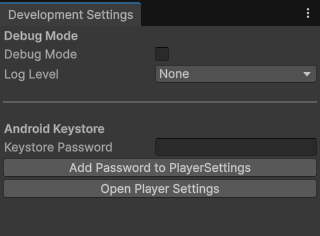
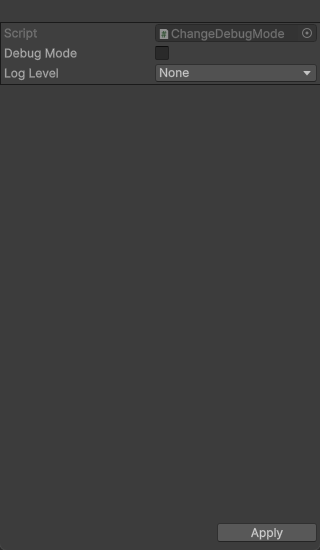
| Menu item | Description |
|---|---|
UMU > Development > Settings | Opens the "Development Settings" window (minimum size 260 x 190). |
UMU > Development > Debug Mode Settings | Opens the "Debug Mode Settings" wizard. |
UMU > Development > Scan Scene For Zero-Z Scaled Transforms | Scans the open scenes. See below. |
UMU > Development > Logger Console | See section 4. |
Development Settings window
| Control | Type | Behaviour |
|---|---|---|
| Debug Mode | toggle | DebugMode.IsDebug. Applied immediately. |
| Log Level | enum popup (DebugMode.LOG) | DebugMode.LogType. Applied immediately. |
| Keystore Password | password field | Android keystore password. |
| Add Password to PlayerSettings (button) | If the field is not empty, sets the Android keystore and key alias password in Player Settings and saves the password in the file password.txt located two folders above Assets (the parent of the project folder), as plain text. If the field is empty, an error is logged. | |
| Open Player Settings (button) | Opens Edit > Project Settings > Player. |
When the Editor loads, a saved password.txt is read automatically and applied to the Android keystore and key alias password in Player Settings.
Debug Mode Settings wizard (button "Apply")
| Field | Type | Default | Behaviour |
|---|---|---|---|
| Debug Mode | toggle (tooltip "Change Debug Mode") | current value | Sets DebugMode.IsDebug. |
| Log Level | enum (tooltip "Change Log Mode") | current value | Sets DebugMode.LogType. |
Both fields start with the current stored values. Apply writes both values.
Scan Scene For Zero-Z Scaled Transforms. Finds every Transform (including inactive ones) in the open scenes whose localScale.z is zero or negative. Each one is logged as an error with its hierarchy path (clicking the message pings the object), all of them are selected, and a summary warning is logged. If none is found, an info message is logged.
Inspector reference #
DebugModeSettings (ScriptableObject) #
Stored at Assets/UMU/Debug Mode/Resources/DebugModeSettings.asset and created automatically in the Editor if missing. It is loaded at runtime from Resources under the name DebugModeSettings.

| Label | Type | Default | Behaviour |
|---|---|---|---|
| Is Debug | bool | false | Master debug switch (DebugMode.IsDebug). |
| Log Type | DebugMode.LOG | Log | Log level (DebugMode.LogType). The shipped asset uses Log, so all messages are shown. Setting None turns Unity Debug.Log output off for the whole project. |
DebugMode.LOG values and effect (a level enables itself and every level listed before it, except None):
| Value | Enabled message kinds |
|---|---|
| None | None. Debug.unityLogger.logEnabled is set to false. |
| Exception | Exception |
| Error | Exception, Error |
| Warning | Exception, Error, Warning |
| Log | Exception, Error, Warning, Log |
Debug.unityLogger.logEnabled is true for any level other than None. In the Editor, changing the level also updates the Player Settings: usePlayerLog, logObjCUncaughtExceptions and the stack trace type of each log type (ScriptOnly when the level is enabled, None otherwise).
DebugMode API: static bool IsDebug { get; set; }, static DebugMode.LOG LogType { get; set; }, static bool LogLevel(DebugMode.LOG log) (true if that kind is enabled), static void Awake() (re-applies the log mode). In the Editor, setting a value also saves the asset. Reading IsDebug returns false and LogType returns None when no settings asset exists.
FpsCounter (MonoBehaviour, requires a uGUI Text) #
Shows the frame rate in the text. Active only in the Editor and development builds (in release builds the component disables itself). The text is green at 60 FPS or more, yellow below 60, red below 30.

| Label | Type | Default | Behaviour |
|---|---|---|---|
| Update Interval | float | 0.5 | Seconds between text updates. |
| Require Debug Mode | bool | true | When on, the text is visible only while DebugMode.IsDebug is true. |
InGameDebugConsole (MonoBehaviour) #
Draws a log overlay with IMGUI for device testing. Works only in the Editor and development builds (the component destroys itself in release builds) and only while DebugMode.IsDebug is true (checked in Awake). The object is marked DontDestroyOnLoad. A "Show Logs"/"Hide Logs" button sits in the top right corner; the overlay opens automatically when an Error, Exception or Assert arrives. The overlay has the toggles Auto-scroll, Log, Warning, Error and a Clear button.
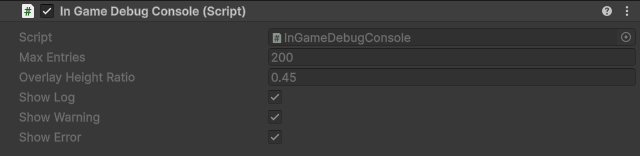
| Label | Type | Default | Behaviour |
|---|---|---|---|
| Max Entries | int | 200 | Ring buffer size. The oldest entry is removed first. |
| Overlay Height Ratio | float | 0.45 | Overlay height as a fraction of the screen height. |
| Show Log | bool | true | Show Log messages. |
| Show Warning | bool | true | Show Warning messages. |
| Show Error | bool | true | Show Error, Exception and Assert messages. |
ScreenshotCreator (MonoBehaviour) #
Takes a screenshot when F12 is pressed (works with the Input System package or the legacy Input Manager). Active only in the Editor and development builds. Files are saved as PNG to <persistentDataPath>/Screenshots/Screenshot <yyyyMMddHHmmss> <width>x<height>.png.

| Label | Type | Default | Behaviour |
|---|---|---|---|
| Res Width | int | 2550 | Width of the multi camera capture. |
| Res Height | int | 3300 | Height of the multi camera capture. |
| Cameras In Order | array of Camera | empty | When empty, the current screen is captured with ScreenCapture. Otherwise the cameras are rendered in the given order into a render texture of Res Width x Res Height. |
API: void TakeScreenshot() (ignored while a capture is running), static string ScreenShotName(int width, int height).
Code examples #
using UnityEngine;
using UMU.Development;

public class DebugModeExample : MonoBehaviour
{
    private void Start()
    {
        // Read the state
        Debug.Log("Debug mode: " + DebugMode.IsDebug + ", level: " + DebugMode.LogType);

        // Change the state (saved to the settings asset in the Editor)
        DebugMode.LogType = DebugMode.LOG.Warning;
        DebugMode.IsDebug = true;

        // Level check before doing expensive logging work
        if (DebugMode.LogLevel(DebugMode.LOG.Log))
            Debug.Log("Verbose output is enabled");

        // Debug only features
        if (DebugMode.IsDebug && (Application.isEditor || Debug.isDebugBuild))
            ShowCheatPanel();
    }

    private void ShowCheatPanel()
    {
        Debug.Log("Cheat panel shown");
    }
}
Adding the debug tools from code:
using UnityEngine;
using UnityEngine.UI;
using UMU.Development;

public class DebugToolsBootstrap : MonoBehaviour
{
    [SerializeField] private Text fpsText;
    [SerializeField] private Camera mainCamera;

    private void Awake()
    {
        var console = gameObject.AddComponent<InGameDebugConsole>();
        console.maxEntries = 500;
        console.overlayHeightRatio = 0.6f;
        console.showLog = false;

        if (fpsText != null)
        {
            var fps = fpsText.gameObject.AddComponent<FpsCounter>();
            fps.updateInterval = 0.25f;
            fps.requireDebugMode = true;
        }

        var shots = gameObject.AddComponent<ScreenshotCreator>();
        shots.resWidth = 1920;
        shots.resHeight = 1080;
        shots.camerasInOrder = new[] { mainCamera };

        // Manual capture (same as pressing F12)
        shots.TakeScreenshot();
    }
}
9. Internet Checker #
Lightweight reachability check. It resolves host names (DNS) on a background thread and reports the result on the main thread. The callback is invoked exactly once. It also works in edit mode (the component is [ExecuteAlways]; in the Editor a queue pump drains pending callbacks).
Editor menu and window reference #
The Internet Checker has no menu items, windows or wizards.
Inspector reference #
InternetChecker (MonoBehaviour) #
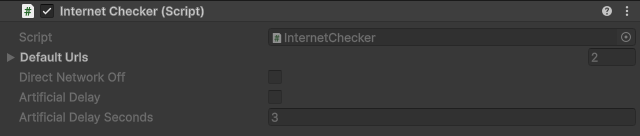
| Label | Type | Default | Behaviour |
|---|---|---|---|
| Default Urls | string array | example.com, unity3d.com | Host names used by IsConnected(Action<bool>) and as a fallback when an empty list is passed. The check reports online as soon as one host resolves. |
| Direct Network Off | bool | false | Debug only. Forces every check to report offline. Works only in the Editor or development builds with Debug Mode on. Never ship enabled. |
| Artificial Delay | bool | false | Debug only. Waits "Artificial Delay Seconds" before answering. Same conditions as above. In edit mode the delay is skipped. |
| Artificial Delay Seconds | float | 3 | Delay used when Artificial Delay is on. |
API:
| Member | Description |
|---|---|
static InternetChecker Instance | Finds the instance in the scene (may be null). |
static InternetChecker EnsureInstance() | Returns the instance, creating a GameObject "InternetChecker" if none exists. |
void IsConnected(Action<bool> result) | Checks defaultUrls. |
void IsConnected(string url, Action<bool> result) | Checks one host. |
void IsConnected(string[] urlArray, Action<bool> result) | Checks the given hosts in order. A null or empty array uses defaultUrls. |
static void DrainQueueNow() | Edit mode pump (called by the Editor). |
A host name that fails to resolve is reported with a warning (through DebugLogger, so it follows the Debug Mode log level). A null callback does nothing.
Code examples #
using UnityEngine;
using UMU.Net;

public class ConnectivityExample : MonoBehaviour
{
    private void Start()
    {
        InternetChecker checker = InternetChecker.EnsureInstance();

        // Default hosts
        checker.IsConnected(online => Debug.Log("Online (default hosts): " + online));

        // One host
        checker.IsConnected("example.org", online => Debug.Log("example.org reachable: " + online));

        // Custom list, any host that resolves counts as online
        string[] hosts = { "my-game-server.example.com", "cloudflare.com", "unity3d.com" };
        checker.IsConnected(hosts, online =>
        {
            if (online)
                StartOnlineFeatures();
            else
                ShowOfflineMessage();
        });
    }

    private void StartOnlineFeatures() { Debug.Log("Online features started"); }
    private void ShowOfflineMessage() { Debug.Log("No connection"); }
}
Changing the defaults from code:
using UnityEngine;
using UMU.Net;

public class ConnectivityConfig : MonoBehaviour
{
    private void Awake()
    {
        InternetChecker checker = InternetChecker.EnsureInstance();
        checker.defaultUrls = new[] { "my-game-server.example.com" };
    }
}
10. Hardware Detector #
Evaluates a rule set against the live device (SystemInfo, screen resolution and, on iOS, the device generation) and returns a performance tier: Low, Medium or High. The result can drive Unity's quality level.
Editor menu and window reference #
The Hardware Detector has no menu items, windows or wizards and no custom inspector. Configure it through the default Inspector of the HardwareDetector component (it has no Add Component menu entry; find it under Scripts or add it by name).
Inspector reference #
HardwareDetector (MonoBehaviour) #
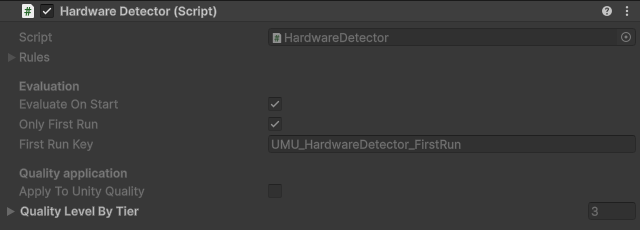
| Label | Type | Default | Behaviour |
|---|---|---|---|
| Rules | HardwareDetectionRules | empty | The rule set. See below. |
| Evaluate On Start (header Evaluation) | bool | true | Evaluates automatically in Start. |
| Only First Run | bool | true | When on, the automatic evaluation runs only once per install. The marker is stored in PlayerPrefs. |
| First Run Key | string | UMU_HardwareDetector_FirstRun | PlayerPrefs key of that marker. |
| Apply To Unity Quality (header Quality application) | bool | false | When on, the tier is applied with QualitySettings.SetQualityLevel(level, true). |
| Quality Level By Tier | int array | 0, 1, 2 | Quality level index per tier: element 0 is Low, 1 is Medium, 2 is High. An index outside the number of quality levels is ignored. |
Event and methods:
| Member | Description |
|---|---|
static HardwareDetector Instance | Finds the instance in the scene (may be null). |
event Action<HardwareTier> onTierEvaluated | Raised after every Evaluate() call. |
HardwareTier Evaluate() | Evaluates the rules against the device, applies the quality level when enabled, raises the event and returns the tier. |
void ApplyToUnityQuality(HardwareTier tier) | Applies a tier through qualityLevelByTier. |
HardwareTier (enum) #
Low = 0, Medium = 1, High = 2.
HardwareDetectionRules #
| Label | Type | Default | Behaviour |
|---|---|---|---|
| Rules | list of HardwareDetectionRule | empty | Evaluated on every platform. The lowest matching tier wins. |
| iOS Rules (header iOS) | list of iOSDetectionRule | empty | Evaluated only on iOS devices. |
HardwareDetectionRule #
| Label | Type | Default | Behaviour |
|---|---|---|---|
| Tier | HardwareTier | Low | Tier applied when any filter group below fully matches. Tooltip: "Tier applied when any [OR] group below fully matches the device." |
| Filter Groups (header [OR]) | list of HardwareFilterGroup | empty | Groups combined with OR. |
HardwareFilterGroup #
| Label | Type | Default | Behaviour |
|---|---|---|---|
| Terms (header [AND]) | list of HardwareFilterTerm | empty | Every term must match for the group to match. A group without terms never matches. |
HardwareFilterTerm #
| Label | Type | Default | Behaviour |
|---|---|---|---|
| Info | HardwareDeviceInfo | GraphicsDeviceName | What is compared. |
| Int Filter Operation | IntFilterOperation | Equal | How the number is compared. |
| Int Filter | int | -1 | Value to compare against. A value of -1 or lower disables the numeric check (it always passes). |
| String Filters | list of string | empty | Used only by GraphicsDeviceName. |
HardwareDeviceInfo values:
| Value | Compared value |
|---|---|
| GraphicsDeviceName | SystemInfo.graphicsDeviceName (lower case). Every non empty string filter must be contained in the name (case insensitive). Then, if the name contains a number, the first number found is compared with Int Filter (for example 730 in "Adreno (TM) 730"). If the name has no number the numeric check passes. |
| SystemMemorySize | SystemInfo.systemMemorySize (MB). |
| ProcessorCount | SystemInfo.processorCount. |
| ProcessorFrequency | SystemInfo.processorFrequency (MHz). |
| ScreenResolution | Screen.currentResolution width multiplied by height (pixels). |
IntFilterOperation values: Equal (device value equals Int Filter), LessThanOrEqual (device value is at most Int Filter), GreaterThanOrEqual (device value is at least Int Filter).
iOSDetectionRule #
| Label | Type | Default | Behaviour |
|---|---|---|---|
| Tier | HardwareTier | Low | Tier applied when the rule matches. |
| Generation Operation | IntFilterOperation | Equal | Comparison between the device generation and the rule generation. |
| Generation | UnityEngine.iOS.DeviceGeneration | first enum value | iOS device generation to compare against. |
Evaluation algorithm #
- The result starts as
High. - Each rule in
Ruleswhose filter groups include at least one fully matching group lowers the result to the rule tier if that tier is lower than the current result. - On iOS devices, each matching
iOSRulesentry lowers the result in the same way. - A null rule set returns
High.
HardwareTierEvaluator (static class) is usable on its own: static HardwareTier Evaluate(HardwareDetectionRules rules) and static void LogAllDeviceData() (writes the key SystemInfo values through DebugLogger).
Code examples #
Reacting to the result and driving the quality level:
using UnityEngine;
using UMU.Hardware;

public class HardwareExample : MonoBehaviour
{
    [SerializeField] private HardwareDetector detector;

    private void OnEnable()
    {
        detector.onTierEvaluated += OnTier;
    }

    private void OnDisable()
    {
        detector.onTierEvaluated -= OnTier;
    }

    private void OnTier(HardwareTier tier)
    {
        switch (tier)
        {
            case HardwareTier.Low:
                Application.targetFrameRate = 30;
                break;
            case HardwareTier.Medium:
                Application.targetFrameRate = 45;
                break;
            default:
                Application.targetFrameRate = 60;
                break;
        }
    }

    public void ReEvaluate()
    {
        HardwareTier tier = detector.Evaluate();
        Debug.Log("Tier: " + tier);
    }
}
Creating the detector and its rules fully in code:
using System.Collections.Generic;
using UnityEngine;
using UMU.Hardware;

public class HardwareRulesInCode : MonoBehaviour
{
    private void Awake()
    {
        var detector = gameObject.AddComponent<HardwareDetector>();
        detector.evaluateOnStart = false;
        detector.applyToUnityQuality = true;
        detector.qualityLevelByTier = new[] { 0, 1, 2 };

        // Low tier if the device has 3 GB RAM or less, OR it has an Adreno GPU numbered 530 or lower.
        var lowByMemory = new HardwareFilterGroup
        {
            terms = new List<HardwareFilterTerm>
            {
                new HardwareFilterTerm
                {
                    info = HardwareDeviceInfo.SystemMemorySize,
                    intFilterOperation = IntFilterOperation.LessThanOrEqual,
                    intFilter = 3072
                }
            }
        };

        var lowByGpu = new HardwareFilterGroup
        {
            terms = new List<HardwareFilterTerm>
            {
                new HardwareFilterTerm
                {
                    info = HardwareDeviceInfo.GraphicsDeviceName,
                    intFilterOperation = IntFilterOperation.LessThanOrEqual,
                    intFilter = 530,
                    stringFilters = new List<string> { "adreno" }
                }
            }
        };

        // Medium tier if at most 6 CPU cores AND a screen with 2 million pixels or fewer.
        var mediumGroup = new HardwareFilterGroup
        {
            terms = new List<HardwareFilterTerm>
            {
                new HardwareFilterTerm { info = HardwareDeviceInfo.ProcessorCount, intFilterOperation = IntFilterOperation.LessThanOrEqual, intFilter = 6 },
                new HardwareFilterTerm { info = HardwareDeviceInfo.ScreenResolution, intFilterOperation = IntFilterOperation.LessThanOrEqual, intFilter = 2000000 }
            }
        };

        detector.rules = new HardwareDetectionRules
        {
            rules = new List<HardwareDetectionRule>
            {
                new HardwareDetectionRule { tier = HardwareTier.Low, filterGroups = new List<HardwareFilterGroup> { lowByMemory, lowByGpu } },
                new HardwareDetectionRule { tier = HardwareTier.Medium, filterGroups = new List<HardwareFilterGroup> { mediumGroup } }
            },
            iOSRules = new List<iOSDetectionRule>
            {
                new iOSDetectionRule
                {
                    tier = HardwareTier.Low,
                    generationOperation = IntFilterOperation.LessThanOrEqual,
                    generation = UnityEngine.iOS.DeviceGeneration.iPhone6
                }
            }
        };

        detector.onTierEvaluated += tier => Debug.Log("Detected tier: " + tier);
        detector.Evaluate();
    }
}
Using the evaluator without a component:
using System.Collections.Generic;
using UnityEngine;
using UMU.Hardware;

public static class StandaloneTierCheck
{
    public static HardwareTier Check()
    {
        var rules = new HardwareDetectionRules();
        rules.rules.Add(new HardwareDetectionRule
        {
            tier = HardwareTier.Low,
            filterGroups = new List<HardwareFilterGroup>
            {
                new HardwareFilterGroup
                {
                    terms = new List<HardwareFilterTerm>
                    {
                        new HardwareFilterTerm { info = HardwareDeviceInfo.ProcessorCount, intFilterOperation = IntFilterOperation.LessThanOrEqual, intFilter = 2 }
                    }
                }
            }
        });

        HardwareTierEvaluator.LogAllDeviceData();
        return HardwareTierEvaluator.Evaluate(rules);
    }
}
11. Common and Utility #
Editor menu and window reference #
Menu items #
| Menu item | Opens | Notes |
|---|---|---|
| UMU > Plugin Save Files | The Plugin Save Files window | Lists the save file of every UMU module that keeps one. |
| UMU > About | The About window | Fixed size window, not resizable. Always the last item of the UMU menu, separated from the other items. |
Plugin Save Files window (UMU > Plugin Save Files) #
The window is a Unity wizard. It is built from the public fields of the wizard class, so it uses the standard Inspector look.
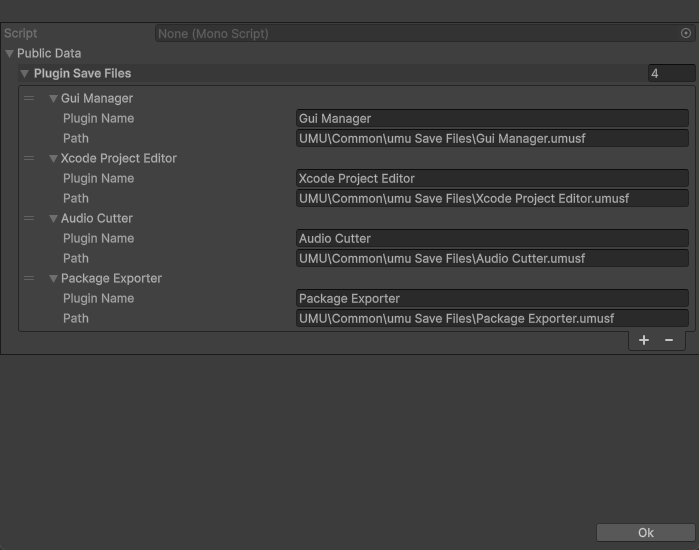
| Control or field (as shown) | What it does | Default | Notes |
|---|---|---|---|
| Public Data > Plugin Save Files (list) | One element per UMU module that stores settings in a .umusf save file. Shipped modules that appear: Audio Cutter, Gui Manager, Xcode Project Editor. | Filled each time the window opens | The list is rebuilt every time the window is opened. Changes made to the list are not stored anywhere. |
| Plugin Save Files > Element > Plugin Name | Name of the module. | Module name | Read it as a label. It is the file name without the .umusf extension. |
| Plugin Save Files > Element > Path | Path of the save file relative to the Assets folder, for example UMU\Common\umu Save Files\Gui Manager.umusf. | Path of the file | The file is searched under Assets by name. If it does not exist it is created with the content {} in the folder Assets/UMU/Common/umu Save Files (or in an existing folder called umu Save Files). |
| Ok button | Closes the wizard. | n/a | It does not write anything. |
Additional behaviour:
- Opening the window checks every module save file and creates the missing ones.
- After every asset import the same check runs again, so a deleted save file is recreated automatically.
- Save files use the extension
.umusf(constantUMU_Constants.SaveFileExtension).
About window (UMU > About) #
| Element | What it does |
|---|---|
| Title "UMU" | Plain title. |
| Link "UMU on bmsoft1024.com: documentation, release notes" | Left click opens https://bmsoft1024.com/product/umu in the browser. |
| Banner image | Plugin banner. The window height follows the image aspect ratio. |
| Link "UMU on the Unity Asset Store" | Left click opens https://u3d.as/4ejN. |
| Logo and text "Created and edited by BMSoft1024 (Miklós Borsi), 2026" | Information only. |
The window is 500 pixels wide, with min and max size locked to the content height.
Constants (UMU.UMU_Constants) #
| Constant | Value |
|---|---|
UMU | "UMU" |
Assets | "Assets" |
Assets_UMU | "Assets/UMU" |
Settings | "Settings" |
SaveFileExtension | ".umusf" |
SubMark | "/" |
SaveDirectoryName | "umu Save Files" |
SaveDirectoryPath | "UMU/Common/umu Save Files" |
AboutPlugin | "About" |
AudioPlugin | "Audio" |
AudioCutterPlugin | "Audio Cutter" |
GuiManagerPlugin | "Gui Manager" |
XcodeProjectEditorPlugin | "Xcode Project Editor" |
PluginSaveFilesEditorPlugin | "Plugin Save Files" |
DevelopmentPlugin | "Development" |
LoggerPlugin | "Logger" |
ConsolePlugin | "Console" |
AndroidManifestPlugin | "Android Manifest Editor" |
SaveFileEditor | "UMU/Plugin Save Files" |
AboutEditor | "UMU/About" |
XcodeProjectEditor | "UMU/Xcode Project Editor" |
AndroidManifestEditor | "UMU/Android Manifest Editor" |
GuiManagerEditor | "UMU/Gui Manager" |
AudioEditor | "UMU/Audio" |
AudioCutterEditor | "UMU/Audio/Audio Cutter" |
DevelopmentEditor | "UMU/Development" |
UMU_Constants.GetSaveFile(string pluginID) returns the full path of the save file pluginID + ".umusf", creating it when missing.
Inspector reference #
Property attributes and decorators #
These attributes change how a field or method is drawn in the Inspector. They are used on your own MonoBehaviour or ScriptableObject fields.
| Attribute (namespace) | Target | Parameters | Exact Inspector behaviour |
|---|---|---|---|
[Button] (UMU) | Parameterless method (instance or static, any access level) | label (string, default null) | Draws a button below the default Inspector. The button text is label, or the method name converted to a readable name when no label is given. Click records an Undo step, invokes the method and marks the object dirty. Works on MonoBehaviour and ScriptableObject types that do not have their own custom editor. Methods that take parameters are ignored. |
[ShowIf(fieldName)] (UMU) | Field | fieldName: name of a serialized bool, enum or int field of the same object | The field is shown only when the named bool is true. If the named field is not found the field is always shown. |
[ShowIf(fieldName, compareValue)] (UMU) | Field | compareValue (object) | Bool condition: the field is shown when the bool equals compareValue. Enum condition: shown when the enum index (position in the declaration, starting at 0) equals (int)compareValue. Int condition: shown when the int equals (int)compareValue. Other condition field types: always shown. |
[ReadOnly] (UMU) | Field | none | The field is drawn greyed out and cannot be edited, including children. |
[Required(message)] (UMU) | Object reference field | message (string, default null) | While the reference is empty an error help box is drawn under the field. Default text is <Field label> is required. Has no effect on non reference fields. |
[Comment(text, messageType)] (UMU.Utility) | Field or any target | comment; messageType (CommentMessageType.None, Info, Warning, Error, default None) | Draws a help box with the text above the field. The box height follows the text length. |
[ConditionalHide(defaultShow, maxDepth)] (UMU.Utility) | Field or property | defaultShow (bool, default false), maxDepth (int, default 5) | The field is hidden or shown according to a [HideCondition] member of the same object (see below). defaultShow is used when the condition cannot be evaluated. maxDepth is the nesting depth searched for the condition member. |
[HideCondition(propertyName)] (UMU.Utility) | Public bool field, property or method; may be used several times on one member | propertyName: name of the field that carries [ConditionalHide] | The member decides whether the named field is visible. A field or property value is converted with Convert.ToBoolean. A method is called with the field name as its single string argument and must return a bool. The target field is shown when the result is true. |
[AssetPath(...)] (UMU.Utility) | string field | see next table | Replaces the text field with a drop down of the matching assets or folders. |
Rules for [ConditionalHide] and [HideCondition]:
- The two attributes must be on different members.
[HideCondition]on a bool field,[ConditionalHide]on the field to hide. - A condition field must be a public field. A condition method may be public or non public.
- When the same condition name exists in nested serializable classes, the member whose path matches the target field most closely is used.
- A hidden field takes no space in the Inspector.
[AssetPath] parameters and drawer controls #
Constructor: AssetPath(string filter, string searchInFolder, bool isUnityFilter = true, bool isDirectory = false, bool cutoffExtension = true, bool recursiveSearch = true)
| Parameter | Meaning |
|---|---|
filter | When isUnityFilter is true: a Unity asset search filter such as t:Texture2D or *.png-style names passed to the asset database. When false: a file system search pattern such as *.*. |
searchInFolder | Folder to search. For the Unity filter it is an asset path such as Assets/Sounds. For file system mode it is a folder path such as Assets. The stored value is relative to this folder. |
isUnityFilter | true uses the asset database, false uses plain file or folder enumeration. |
isDirectory | File system mode only: list folders instead of files. |
cutoffExtension | Removes the file extension from the stored value. Not applied to folders. |
recursiveSearch | File system mode only: search sub folders too. |
Drawer controls (shown for a string field with [AssetPath]):
| Control | What it does |
|---|---|
| Drop down (field label) | First entry is Empty. Choosing an entry stores the path relative to searchInFolder. Choosing Empty stores an empty string. |
| Select button (files only) | Selects the asset searchInFolder/value plus its extension in the Project window. Its tooltip shows the search folder. Not shown for folder lists. |
o button | Turns the search filter on or off. When on, the Select button is replaced by a text box; typing narrows the drop down (case insensitive contains match). Turning it off restores the previous selection. |
If the field is not a string the drawer shows the message "Use AssetPath with string."
Code examples #
Attributes on fields and methods #
using UnityEngine;
using UMU;
using UMU.Utility;

public enum SpawnMode { Single, Burst, Stream }

public class Spawner : MonoBehaviour
{
    [Comment("Configure how enemies are spawned.", CommentMessageType.Info)]
    public SpawnMode mode;

    [ShowIf("mode", SpawnMode.Burst)]
    public int burstCount = 5;

    public bool useCustomName;

    [ShowIf("useCustomName")]
    public string customName;

    [ReadOnly]
    public int spawnedSoFar;

    [Required("Assign the enemy prefab.")]
    public GameObject enemyPrefab;

    [AssetPath("*.*", "Assets", false, true)]
    public string outputFolder;

    [Button]
    private void SpawnOne()
    {
        if (enemyPrefab != null)
            Instantiate(enemyPrefab, transform.position, Quaternion.identity);

        spawnedSoFar++;
    }

    [Button("Reset counter")]
    public void ResetCounter()
    {
        spawnedSoFar = 0;
    }
}
ConditionalHide with HideCondition #
using UnityEngine;
using UMU.Utility;

public class WeaponSettings : MonoBehaviour
{
    // The bool decides about the field named "reloadTime".
    [HideCondition("reloadTime")]
    public bool needsReload;

    [ConditionalHide]
    public float reloadTime = 1.5f;

    public int level;

    // A method can decide too. It receives the field name and returns a bool.
    [HideCondition("legendaryBonus")]
    private bool ShowLegendaryBonus(string propertyName)
    {
        return level >= 10;
    }

    [ConditionalHide(defaultShow: true)]
    public float legendaryBonus = 2f;
}
AssetUtility #
using UnityEngine;
using UMU.Utility;

public class AssetUtilityExample : MonoBehaviour
{
    private void Start()
    {
        // Instantiate a prefab from a Resources path and remove the "(Clone)" suffix from its name.
        GameObject bullet = AssetUtility.CreateInstance<GameObject>("Prefabs/Bullet");

        // Same with position and rotation.
        GameObject bullet2 = AssetUtility.CreateInstance<GameObject>("Prefabs/Bullet", Vector3.zero, Quaternion.identity);

        // Convert an absolute path inside the project to an "Assets/..." path.
        string relative = AssetUtility.AbsoluteToRelativePath(Application.dataPath + "/Textures/Hero.png");
        Debug.Log(relative); // Assets/Textures/Hero.png
    }

#if UNITY_EDITOR
    [ContextMenu("Find asset by name")]
    private void FindAsset()
    {
        // Searches Application.dataPath recursively; the name is a file search pattern.
        string path = AssetUtility.GetAssetPathWithName("Hero.png");
        Texture2D tex = AssetUtility.GetAssetWithName<Texture2D>("Hero.png"); // editor only, null in a player
        Debug.Log(path + " " + tex);
    }
#endif
}
GetAssetWithName<T> needs the editor hook that UMU registers at editor load, so it returns null outside the editor.
SaveFileManager #
using UnityEngine;
using UMU.Utility;

public class SaveFileExample : MonoBehaviour
{
    private void OnEnable()
    {
        SaveFileManager.onFileNotExistsEvent += OnMissing;
        SaveFileManager.onExistsFileNotOverrideEvent += OnExists;
    }

    private void OnDisable()
    {
        SaveFileManager.onFileNotExistsEvent -= OnMissing;
        SaveFileManager.onExistsFileNotOverrideEvent -= OnExists;
    }

    private void OnMissing(FileErrorData data) { Debug.Log("Missing: " + data.path); }
    private void OnExists(FileErrorData data) { Debug.Log("Exists, not overwritten: " + data.path); }

    private void Start()
    {
        // persistentDataPath/saves/profile.txt
        bool saved = SaveFileManager.Save("profile.txt", SavePathPrefix.ApplicationDirectory, "saves", "hello", true);

        if (SaveFileManager.ExistsFile("profile.txt", SavePathPrefix.ApplicationDirectory, "saves"))
        {
            string text = SaveFileManager.Load("profile.txt", SavePathPrefix.ApplicationDirectory, "saves");
            Debug.Log(saved + " " + text);
        }

        // Absolute path overloads.
        string full = System.IO.Path.Combine(Application.persistentDataPath, "direct.txt");
        SaveFileManager.Save(full, "direct content", true);
        Debug.Log(SaveFileManager.Load(full));

        // Clean up.
        SaveFileManager.RemoveFile("profile.txt", SavePathPrefix.ApplicationDirectory, "saves");
        SaveFileManager.DeleteDirectory(SavePathPrefix.ApplicationDirectory, "saves");
    }
}
Notes: Save without overrideFile refuses to replace an existing file, raises onExistsFileNotOverrideEvent and returns false. In the editor outside play mode an overwrite question dialog is shown. Files are written as UTF-8 without BOM. SavePathPrefix.ApplicationDirectory is Application.persistentDataPath, SavePathPrefix.ProjectDirectory is Application.dataPath. Reading from ProjectDirectory while the game is playing loads a text asset from a Resources folder instead of the file system.
JsonSaveManager with version and encryption #
using System;
using System.Collections.Generic;
using UnityEngine;
using UMU.Utility;

[Serializable]
public class PlayerSave
{
    public string playerName;
    public int level;
    public List<string> items = new List<string>();
}

public class JsonSaveExample : MonoBehaviour
{
    private const string FileName = "player.sav";
    private const string Key = "my secret pass phrase";
    private const int CurrentVersion = 2;

    public void Save()
    {
        PlayerSave data = new PlayerSave { playerName = "Ada", level = 7 };
        data.items.Add("sword");

        // Stored as { "version": 2, "payload": "<AES encrypted, Base64>" } in persistentDataPath.
        bool ok = JsonSaveManager.Save(FileName, data, CurrentVersion, Key);
        Debug.Log("Saved: " + ok);
    }

    public PlayerSave Load()
    {
        int version;
        PlayerSave data = JsonSaveManager.Load<PlayerSave>(FileName, out version, Key);

        if (data == null)
            return new PlayerSave(); // missing file or wrong key

        if (version < CurrentVersion)
            data.level = Math.Max(1, data.level); // migrate old data here

        return data;
    }

    public PlayerSave LoadIgnoringVersion()
    {
        return JsonSaveManager.Load<PlayerSave>(FileName, Key);
    }
}
Signatures: Save<T>(string fileName, T data, int version = 1, string encryptionKey = null), Load<T>(string fileName, out int loadedVersion, string encryptionKey = null), Load<T>(string fileName, string encryptionKey = null). Without a key the payload is plain JSON. With a key the payload is encrypted with AES, the key is derived from your text with SHA 256 and a random initialisation vector is stored with the data. A load failure logs an error and returns default(T). JsonSaveManager uses the plain Newtonsoft converter, so store Unity structs as their components or serialize them with Serialization first.
Serialization of Unity types #
using UnityEngine;
using UMU.Utility;

public class SerializationExample : MonoBehaviour
{
    [System.Serializable]
    public class Marker
    {
        public Vector3 position;
        public Quaternion rotation;
        public Color color;
        public Vector2Int cell;
        public RectInt area;
        public string label;
        public string notSet; // null values are skipped
    }

    private void Start()
    {
        Marker marker = new Marker
        {
            position = new Vector3(1, 2, 3),
            rotation = Quaternion.identity,
            color = Color.red,
            cell = new Vector2Int(4, 5),
            area = new RectInt(0, 0, 10, 20),
            label = "A"
        };

        string json = Serialization.Serialize(marker);
        Debug.Log(json);

        Marker copy = Serialization.Deserialize<Marker>(json);
        Debug.Log(copy.position + " " + copy.color);
    }
}
Supported Unity types: Vector2, Vector3, Vector4, Vector2Int, Vector3Int, Quaternion, Color, Color32, RectInt. Output is indented, null values are not written and reference loops are ignored. Deserialize of an empty or null string returns default.
EditorDataSaveManager (class EditorDataManager) in an editor script #
The helper keeps the data of an editor window across play mode changes and editor restarts using EditorPrefs.
#if UNITY_EDITOR
using UnityEditor;
using UnityEngine;
using UMU.EDITOR;

public class CounterWindow : EditorWindow
{
    [System.Serializable]
    public struct CounterData : EditorDataManager.IEditorData
    {
        public bool initialized;
        public int counter;

        public EditorDataManager.IEditorData DefaultEditorData()
        {
            initialized = true;
            counter = 0;
            return this;
        }

        public bool Initialized() { return initialized; }
    }

    private const string EditorId = "MyCompany.CounterWindow";
    private CounterData data;

    [MenuItem("Window/Counter Window")]
    private static void Open() { GetWindow<CounterWindow>("Counter"); }

    private void OnEnable()
    {
        EditorApplication.playModeStateChanged += OnPlayModeChanged;
        EditorDataManager.CheckNullableEditorData(EditorId, ref data);
    }

    private void OnDisable()
    {
        EditorApplication.playModeStateChanged -= OnPlayModeChanged;
        EditorDataManager.SaveMyVariableValue(EditorId, data);
    }

    private void OnPlayModeChanged(PlayModeStateChange state)
    {
        EditorDataManager.OnPlayModeStateChanged(state, EditorId, ref data);
    }

    private void OnGUI()
    {
        data.counter = EditorGUILayout.IntField("Counter", data.counter);
    }
}
#endif
API: OnPlayModeStateChanged<T>(PlayModeStateChange state, string editorId, ref T data), CheckNullableEditorData<T>(string editorId, ref T data), SaveMyVariableValue<Type>(string id, Type obj), LoadMyVariableValue<Type>(string id), interface IEditorData with bool Initialized() and IEditorData DefaultEditorData(). The data type must have a parameterless constructor and be serializable by Serialization.
RichTextUtils #
using UnityEngine;
using UMU.Utility;

public class RichTextExample : MonoBehaviour
{
    private void Start()
    {
        string a = RichTextUtils.Colorize("Warning", Color.yellow);
        string b = RichTextUtils.Colorize("Error", new Color32(255, 0, 0, 255));
        string c = RichTextUtils.Colorize("Custom", "FF8800");      // RRGGBB or RRGGBBAA
        string d = RichTextUtils.Bold(RichTextUtils.Italic("Both"));
        string e = RichTextUtils.Size("Big", 32);
        byte byteValue = RichTextUtils.ToByte(0.5f);                // 127

        Debug.Log(a + " " + b + " " + c + " " + d + " " + e + " " + byteValue);
    }
}
Simplex.Noise #
Namespace Simplex. Calc1D, Calc2D and Calc3D return values in the range 0 to 256 centred on 128 (the noise value in the range -1 to 1 multiplied by 128, plus 128). Generate(float x) returns the raw 1D value in the range -1 to 1. Setting Seed to a non zero value builds a new random permutation table, setting it to 0 restores the default one.
using UnityEngine;

public class NoiseExample : MonoBehaviour
{
    private void Start()
    {
        Simplex.Noise.Seed = 1234;

        float[] line = Simplex.Noise.Calc1D(64, 0.05f);
        float[,] map = Simplex.Noise.Calc2D(128, 128, 0.02f);
        float[,,] volume = Simplex.Noise.Calc3D(16, 16, 16, 0.1f);
        float raw = Simplex.Noise.Generate(3.7f);

        Texture2D tex = new Texture2D(128, 128);

        for (int x = 0; x < 128; x++)
            for (int y = 0; y < 128; y++)
            {
                float v = map[x, y] / 255f;
                tex.SetPixel(x, y, new Color(v, v, v));
            }

        tex.Apply();
        Debug.Log(line.Length + " " + volume.GetLength(0) + " " + raw);
    }
}
ListShuffler #
using System.Collections.Generic;
using UnityEngine;
using UMU.Utility;

public class ShuffleExample : MonoBehaviour
{
    private void Start()
    {
        List<int> cards = new List<int> { 1, 2, 3, 4, 5, 6 };

        cards.Shuffle();                          // uses UnityEngine.Random

        System.Random seeded = new System.Random(42);
        cards.Shuffle(seeded);                    // reproducible order

        int[] array = { 1, 2, 3 };
        array.Shuffle();                          // works on any IList<T>
    }
}
ComponentExtension #
Namespace UMU. Copies fields and properties from one component to another. Members that cannot be copied are skipped and the exception is logged.
using UnityEngine;
using UMU;

public class CopyExample : MonoBehaviour
{
    public MyScript template;

    private void Start()
    {
        // Add a new component to this object and copy all values from the template.
        MyScript added = gameObject.AddComponent(template);

        // Copy values onto an existing component.
        MyScript other = gameObject.AddComponent<MyScript>();
        other.GetCopyOf(template);

        // Copy only the members shared between a parent type and a child type.
        // gameObject.AddComponent<ParentScript, ChildScript>(parentInstance);
    }
}

public class MyScript : MonoBehaviour
{
    public int value = 3;
    public string title = "x";
}
Signatures: GetCopyOf<T>(this Component comp, T other, bool seeAllBase = true), GetCopyOf<TParent, TChild>(this Component comp, TParent parent, bool seeAllBase = true), AddComponent<T>(this GameObject go, T toAdd), AddComponent<TParent, TChild>(this GameObject go, TParent toAdd). With seeAllBase true the members of base classes up to Component are copied as well.
ClassCloneCreator #
Namespace UMU.Reflection. Makes a copy of a class instance by copying all public fields. Arrays are copied with Array.Clone, List<T> and LinkedList<T> get new lists. A field value that implements ICloneableClass is cloned with its own Clone(), every other value is copied by assignment.
using System.Collections.Generic;
using UnityEngine;
using UMU.Reflection;

public class Item : ICloneableClass
{
    public string name = "";
    public int power;

    public object Clone()
    {
        return new Item { name = name, power = power };
    }
}

public class Inventory
{
    public int gold;
    public Item main = new Item();
    public List<Item> bag = new List<Item>();
    public int[] slots = new int[4];
}

public class CloneExample : MonoBehaviour
{
    private void Start()
    {
        Inventory original = new Inventory { gold = 10 };
        original.bag.Add(new Item { name = "Potion", power = 2 });

        Inventory copy = ClassCloneCreator.Clone(original); // T must have a public parameterless constructor
        copy.bag[0].power = 99;

        Debug.Log(original.bag[0].power); // 2
    }
}
Reflection helpers (UMU.Reflection.ReflectionUtilility, REF) #
The utility class name is spelled ReflectionUtilility in the code. It provides IsCollection, IsCloneable, IsArray, IsList, GetList(Type), GetLinkedList(Type), SearchObjectDataWithName, SearchObjectWithAttribute<T>, SearchObject and LengthOfMatch. The REF class holds SearchParameters, SearchCondition, ObjectInfoType, ObjectInfo and ObjectData.
using System;
using System.Collections.Generic;
using UnityEngine;
using UMU.Reflection;

[AttributeUsage(AttributeTargets.Field | AttributeTargets.Method)]
public class MarkAttribute : Attribute { }

public class Config
{
    [Mark] public int speed = 3;
    public string title = "demo";
}

public class ReflectionExample : MonoBehaviour
{
    private void Start()
    {
        Config root = new Config();

        REF.SearchParameters parameters = new REF.SearchParameters(REF.SearchCondition.BasedOnAttributes, typeof(MarkAttribute), root, 5);
        List<REF.ObjectData<MarkAttribute>> found = ReflectionUtilility.SearchObjectWithAttribute<MarkAttribute>(parameters);

        foreach (REF.ObjectData<MarkAttribute> data in found)
            Debug.Log(data.objectPath + " = " + data.objectReference);

        List<REF.ObjectData> byName = ReflectionUtilility.SearchObjectDataWithName(root, "title");
        Debug.Log(byName.Count);
    }
}
The search walks public fields, then properties, then (for attribute searches) methods. Depth is limited by maxDepth.
JsonFormatter #
using UnityEngine;
using UMU.Utility;

public class JsonFormatterExample : MonoBehaviour
{
    private void Start()
    {
        string compact = "{\"a\":1,\"b\":[1,2,3],\"c\":{\"d\":\"x\"}}";
        string pretty = JsonFormatter.FormatJson(compact); // 4 space indentation
        Debug.Log(pretty);
    }
}
MiniJSON #
Namespace UMU.Utility. Objects decode to Hashtable, arrays to ArrayList, every number to double. The parser does not throw; use lastDecodeSuccessful() to check the result.
using System.Collections;
using System.Collections.Generic;
using UnityEngine;
using UMU.Utility;

public class MiniJsonExample : MonoBehaviour
{
    private void Start()
    {
        string json = "{\"name\":\"Ada\",\"scores\":[1,2,3],\"level\":7}";

        Hashtable table = MiniJSON.jsonDecode(json) as Hashtable;

        if (!MiniJSON.lastDecodeSuccessful())
        {
            Debug.LogError(MiniJSON.getLastErrorIndex() + ": " + MiniJSON.getLastErrorSnippet());
            return;
        }

        string name = (string)table["name"];
        double level = (double)table["level"];
        ArrayList scores = (ArrayList)table["scores"];
        Debug.Log(name + " " + level + " " + scores.Count);

        // Encode.
        Hashtable output = new Hashtable();
        output["id"] = 5;
        output["tags"] = new ArrayList { "a", "b" };
        string text = MiniJSON.jsonEncode(output);

        // Extension methods.
        Hashtable again = text.hashtableFromJson();
        ArrayList list = "[1,2,3]".arrayListFromJson();
        string fromDict = new Dictionary<string, string> { { "k", "v" } }.toJson();
        string fromTable = output.toJson();
        Debug.Log(again.Count + " " + list.Count + " " + fromDict + " " + fromTable);
    }
}
TextureToBase64Tool #
Namespace TeamUtilityEditor. Texture2DToBase64(Texture2D) copies the texture into an RGB24 texture with Graphics.CopyTexture, encodes it as JPG (quality 100) and returns the Base64 text. Base64ToTexture2D(string) returns a new RGB24 texture with point filtering and the flag HideAndDontSave.
using UnityEngine;
using TeamUtilityEditor;

public class Base64Example : MonoBehaviour
{
    public Texture2D source;

    private void Start()
    {
        string text = TextureToBase64Tool.Texture2DToBase64(source);
        Texture2D back = TextureToBase64Tool.Base64ToTexture2D(text);
        Debug.Log(text.Length + " " + back.width);
    }
}
Editor helper classes (editor only) #
Class (namespace UMU) | Purpose |
|---|---|
UMU_InspectorEditor | Base class for UI Toolkit inspectors. Override CreateInspectorGUI. Helpers: ShowProperty(root, property, name = "") adds a bound field, ShowSeparator(root) adds a thin line. |
UMU_PropertyDrawer | Base class for UI Toolkit property drawers. Override Initialize(SerializedProperty, VisualElement root). Helpers: LabelField, ShowProperty(root, relativeProperty, name, maxWidth), ShowSeparator, PropertyIntValue. |
UMU_EditorWindow | Base class for IMGUI windows. Helpers: GetLabelWidth, GetLabelHeight, GetButtonWidth, GetButtonHeight, LabelField, ShowSeparator. |
UMU_EditorUI | Static UI Toolkit helpers: Section(parent, title), SectionBox(title, out box), PrimaryButton(text, onClick), Row(gap), extension methods Grow and MarginRight. |
UMU_EditorTools | Static IMGUI helpers: DrawHeader, BeginContents, EndContents, DrawProperty, DrawPaddedProperty, DrawListProperty, ListIterator. |
UMU_ButtonDrawer | DrawButtons(Object target) draws the [Button] buttons of any target. Call it from your own custom editor to keep buttons there. |
#if UNITY_EDITOR
using UnityEditor;
using UnityEngine;
using UnityEngine.UIElements;
using UMU;

public class HeroData : MonoBehaviour
{
    public int health = 100;
    public float speed = 3f;
}

[CustomEditor(typeof(HeroData))]
public class HeroDataEditor : UMU_InspectorEditor
{
    public override VisualElement CreateInspectorGUI()
    {
        VisualElement root = new VisualElement();
        VisualElement section = UMU_EditorUI.Section(root, "Stats");
        ShowProperty(section, "health", "Health");
        ShowSeparator(section);
        ShowProperty(section, "speed", "Speed");
        root.Add(UMU_EditorUI.PrimaryButton("Heal", () => { ((HeroData)target).health = 100; EditorUtility.SetDirty(target); }));
        return root;
    }
}
#endif
12. Android Manifest Editor #
Edits the file Assets/Plugins/Android/AndroidManifest.xml with a form, without touching XML.
Editor menu and window reference #
Menu item: UMU > Android Manifest Editor. The window title is "Android Manifest Editor". The window content scrolls.
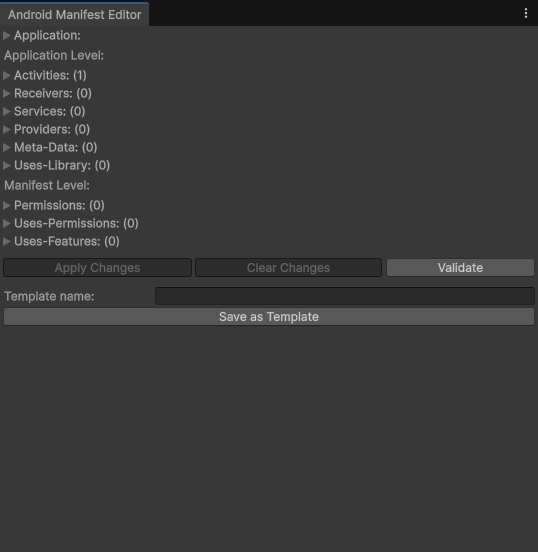
If the manifest file or its folder does not exist, the editor creates Assets/Plugins/Android and writes a default manifest with:
manifestattributes:package="", theme@android:style/Theme.NoTitleBar,versionName1.0,versionCode1,installLocationpreferExternalsupports-screensfor all sizes- an
application(icon@drawable/app_icon, label@string/app_name,debuggablefalse) with one activitycom.unity3d.player.UnityPlayerNativeActivity(landscape,singleTask, exported true, MAIN and LAUNCHER intent filter, Unity meta data) uses-sdkwithminSdkVersion23 andtargetSdkVersion36uses-featureglEsVersion0x00020000
Window level controls #
| Control (as shown) | What it does | Default or state | Notes |
|---|---|---|---|
| Application: (foldout) | Shows the attributes of the application element (see 2.2). | Collapsed | Not shown for templates. Templates show a "Name:" text field instead. |
| Application Level: (label) | Starts the group of elements stored inside application. | n/a | Groups below: Activities, Receivers, Services, Providers, Meta-Data, Uses-Library. |
| Activities: (n) | List of activity elements, with count. | Collapsed | Contains one foldout per activity and a "New Activity" button. |
| Receivers: (n) | List of receiver elements. | Collapsed | "New Receiver" button. |
| Services: (n) | List of service elements. | Collapsed | "New Service" button. |
| Providers: (n) | List of provider elements. | Collapsed | "New Provider" button. |
| Meta-Data: (n) | meta-data elements that are direct children of application. | Collapsed | "New Meta-Data" button. |
| Uses-Library: (n) | uses-library elements. | Collapsed | "New Uses-Library" button. |
| Manifest Level: (label) | Starts the group of elements stored directly inside manifest. | n/a | Groups below: Permissions, Uses-Permissions, Uses-Features. |
| Permissions: (n) | permission elements. | Collapsed | "New Permission" button. |
| Uses-Permissions: (n) | uses-permission elements. | Collapsed | "New Uses-Permission" button. |
| Uses-Features: (n) | uses-feature elements that have an android:name. | Collapsed | "New Uses-Feature" button. |
| Apply Changes | Writes all edited, new and removed elements into the XML and saves the file. | Green when there are unsaved changes, grey otherwise | Only elements that were changed are rewritten. After saving, the changed state is cleared. |
| Clear Changes | Throws away unsaved edits and reloads the manifest from disk. | Red when there are unsaved changes, grey otherwise | |
| Validate | Checks the manifest against Android 12, 13 and 14 rules (see 2.4). | n/a | Checks the file on disk. Edits that were not applied are not included. |
| Template name: | Text box for the name of a new template. | Empty | |
| Save as Template | Stores the current manifest content as a template under the entered name. | n/a | If a template with the same name exists the dialog "Save over existing template?" appears with Yes and No. |
| Template foldout "<name>:" | Shows the template content, editable like the main manifest. | Collapsed | |
| Import (per template) | Merges the template into the current manifest and marks it changed. | n/a | Each template element is appended to the proper parent. An existing element with the same name is marked as removed and replaced. Use Apply Changes afterwards. |
| Delete (per template) | Deletes the template. | n/a | |
| Apply Changes / Clear Changes (inside an expanded template) | Saves or reverts the edits of that template. | n/a | A template is stored in the editor preferences, not in the manifest file. |
Templates are kept in the Unity editor preferences (keys BBMANIFEST0, BBMANIFEST1, and so on), so they are available in every project on the same machine and user account.
Every element has its own Remove button (the button text differs per element, see the tables below). Removing is applied when you press Apply Changes.
Inspector reference (fields of every manifest element) #
The model classes are not Inspector components. Their fields are shown in the window. The following tables list every field as shown. Attributes that are empty or equal to the Android default are not written to the file, except android:exported, which is always written for activities, receivers, services and providers.
Application #
| Label | Type | Default | Written as |
|---|---|---|---|
| Name: | text | empty | android:name |
| Allow Task Reparenting: | toggle | off | allowTaskReparenting (only when on) |
| Allow Backup: | toggle | off | allowBackup (only when on) |
| Backup Agent: | text | empty | backupAgent |
| Debuggable | toggle | off | debuggable (only when on) |
| Description: | text area | empty | description |
| Enabled: | toggle | on | enabled="false" only when off |
| Has Code: | toggle | on | hasCode="false" only when off |
| Hardware Accelerated | toggle | on | hardwareAccelerated="false" only when off |
| Icon: | text | empty | icon |
| Kill After Restore: | toggle | on | killAfterRestore="false" only when off |
| Large Heap: | toggle | off | largeHeap |
| Label: | text | empty | label |
| Logo: | text | empty | logo |
| Manage Space Activity: | text | empty | read from the file, shown in the form |
| Permission: | text | empty | permission |
| Persistent: | toggle | off | persistent |
| Process: | text | empty | process |
| Restore Any Version: | toggle | off | restoreAnyVersion |
| Required Account Type: | text | empty | requiredAccountType |
| Restricted Account Type: | text | empty | restrictedAccountType |
| Supports Rtl: | toggle | off | supportsRtl |
| Task Affinity | text | empty | taskAffinity |
| Test Only | toggle | off | testOnly |
| Theme | text | empty | theme |
| UI Options: | text | empty | uiOptions |
| VM Safe Mode: | toggle | off | vmSafeMode |
Activity (foldout "Activity: <name>") #
| Label | Type | Default | Notes |
|---|---|---|---|
| Name: | text | empty | android:name. Written always. |
| Attributes: (foldout) | group | collapsed | Contains the fields below. |
| Allow Task Reparenting: | toggle | off | |
| Always Retain Task State: | toggle | off | |
| Clear Task On Launch: | toggle | off | |
| Config Changes: | multi select | none | Options: mcc, mnc, locale, touchscreen, keyboard, keyboardHidden, navigation, screenLayout, fontScale, uiMode, orientation, screenSize, smallestScreenSize. Written as values joined with |. |
| Enabled: | toggle | on | enabled="false" only when off. |
| Exclude From Recents: | toggle | off | |
| Exported: | toggle | on | Always written as true or false. |
| Hardware Accelerated: | toggle | off | |
| Icon: | text | empty | |
| Label: | text | empty | |
| Launch Mode: | drop down | standard | Options: standard, singleTop, singleTask, singleInstance. standard is not written. |
| Multiprocess: | toggle | off | |
| No History: | toggle | off | |
| Permission: | text | empty | |
| Process: | text | empty | |
| Screen Orientation: | drop down | unspecified | Options: unspecified, behind, landscape, portrait, reverseLandscape, reversePortrait, sensorLandscape, sensorPortrait, userLandsacpe, userPortrait, sensor, fullSensor, nosensor, user, fullUser, locked. unspecified is not written. |
| State Not Needed | toggle | off | |
| Task Affinity: | text | empty | |
| Theme: | text | empty | |
| UI Options: | drop down | none | Options: none, splitActionBarWhenNarrow. |
| Window Soft Input Mode: | multi select | none | Options: stateUnspecified, stateUnchanged, stateHidden, stateAlwaysHidden, stateVisible, stateAlwaysVisible, adjustUnspecified, adjustResize, adjustPan. |
| Intent-Filters: (n) | list | collapsed | Button "New Intent-Filter". See intent filter below. |
| Meta-Data: (n) | list | collapsed | Button "New Meta-Data". |
| Remove Activity | button | n/a | Marks the activity for removal. |
Receiver (foldout "Receiver: <name>") #
Fields: Name:, Attributes: with Enabled: (on), Exported: (on, always written), Icon:, Label:, Permission:, Process:. Lists: Intent-Filters: (n) with "New Intent-Filter", Meta-Data: (n) with "New Meta-Data" (the count shown next to Meta-Data in a receiver is the number of intent filters). Button: Remove Receiver.
Service (foldout "Service: <name>") #
Fields: Name:, Attributes: with Enabled: (on), Exported: (on, always written), Icon:, Isolated Process: (off), Label:, Permission:, Process:, Foreground Service Type: (multi select: camera, connectedDevice, dataSync, health, location, mediaPlayback, mediaProjection, microphone, phoneCall, remoteMessaging, shortService, specialUse, systemExempted). Lists: Intent-Filters: (n), Meta-Data: (n). Button: Remove Service.
Provider (foldout "Provider: <name>") #
Fields: Name:, Attributes: with one text box per authority (each with a Remove button, authorities are written joined with ;), Enabled: (on), Exported: (on, always written), Grant URI Permissions: (off), Icon:, Init Order: (0, not written when 0), Label:, Multiprocess: (off), Permission:, Process:, Read Permission:, Syncable: (off), Write Permission:. Lists: Meta-Data: (n), Grant-Uri-Permissions: (n) with "New Grant-Uri-Permission", Path-Permissions: (n) with "New Path-Permission". Button: Remove Provider. Authorities that already exist in the file are listed and can be edited or removed.
Intent-Filter (foldout "Intent-Filter: <name>") #
| Label | Type | Default | Notes |
|---|---|---|---|
| Icon: | text | empty | |
| Label: | text | empty | |
| Priority: | integer | 0 | Not written when 0. |
| Action Name: | text | empty | One row per action. Button "Remove Action". |
| Category Name: | text | empty | One row per category. Button "Remove Category". |
| Data: (foldout) | group | collapsed | Fields: Scheme:, Host:, Port:, Path:, PathPattern:, PathPrefix:, Mime Type: and a Remove button. |
| New Action: / New Category: / New Data: | buttons | n/a | Add a row. |
| Remove Intent-Filter | button | n/a |
Meta-Data (foldout "Meta-Data: <name>") #
| Label | Type | Default | Notes |
|---|---|---|---|
| Name: | text | empty | |
| Value: | text | empty | |
| Is Resource: | toggle | off | Off writes android:value, on writes android:resource. |
| Remove | button | n/a |
Uses-Library #
| Label | Type | Default | Notes |
|---|---|---|---|
| Name: | text | empty | |
| Required: | toggle | off for a new entry, on when read from a file without the attribute | required="false" is written when off. |
| Remove Uses-Library | button | n/a |
Permission (foldout "Permission: <name>") #
| Label | Type | Default | Notes |
|---|---|---|---|
| Name: | text | empty | |
| Protection Level: | drop down | NORMAL | NORMAL, DANGEROUS, SIGNATURE, SIGNATUREORSYSTEM. |
| Label: | text | empty | Removed from the file when emptied. |
| Description: | text area | empty | Removed from the file when emptied. |
| Icon: | text | empty | Removed from the file when emptied. |
| Remove | button | n/a |
Uses-Permission (foldout "Uses-Permission: <name>") #
| Label | Type | Default | Notes |
|---|---|---|---|
| Permission: | drop down or text | NONE | Drop down with the classic Android permissions plus the newer ones (Bluetooth scan, connect and advertise, POST_NOTIFICATIONS, READ_MEDIA_IMAGES, READ_MEDIA_VIDEO, READ_MEDIA_AUDIO, READ_MEDIA_VISUAL_USER_SELECTED, ACCESS_MEDIA_LOCATION, NEARBY_WIFI_DEVICES, USE_FULL_SCREEN_INTENT, SCHEDULE_EXACT_ALARM, USE_EXACT_ALARM, BODY_SENSORS_BACKGROUND, FOREGROUND_SERVICE and the FOREGROUND_SERVICE_* types). The file value is the name with the prefix android.permission.. |
| Standard Permission: | toggle | on | On shows the drop down. Off shows a free text box. |
| Max SDK Version: | slider 9 to 36 | 36 | A value of 36 means no maxSdkVersion is written. |
| Remove | button | n/a |
Uses-Feature #
| Label | Type | Default | Notes |
|---|---|---|---|
| Feature: | drop down | NONE | Hardware and software features such as hardware.camera, hardware.location.gps, hardware.touchscreen.multitouch, software.live_wallpaper. The file value is the name with the prefix android.. |
| Required: | toggle | on | required="false" is written when off. |
| Remove | button | n/a |
Grant-Uri-Permission #
Fields: Path:, PathPattern:, PathPrefix:, button "Remove ". Path is always written, the other two only when not empty.
Path-Permission #
Fields: Path:, PathPattern:, PathPrefix:, Permission:, Read Permission:, Write Permission:, button "Remove Path-Permission ".
Template storage and merge behaviour #
- Save as Template stores the template name followed by the full manifest XML in the editor preferences.
- Import appends the template elements and replaces elements with the same
name. - Templates can be edited and saved independently of the manifest file.
Validate button rules #
Validate loads the manifest from disk and reports each finding as an error or a warning in a dialog and in the Console log. The dialog title shows the number of errors and warnings. With no findings it shows "No issues found" for Android 12, 13 and 14.
| Rule | Severity |
|---|---|
An activity, activity-alias, receiver, service or provider that has an intent-filter but no android:exported attribute (Android 12 and later reject the install) | Error |
A component with an intent-filter and android:exported="true" | Warning (check that other apps are really allowed to call it) |
A service with android:foregroundServiceType but without the FOREGROUND_SERVICE permission | Error |
A foreground service type without its matching permission FOREGROUND_SERVICE_<TYPE> (for example mediaPlayback needs FOREGROUND_SERVICE_MEDIA_PLAYBACK). Types specialUse, systemExempted and shortService are skipped. | Error |
targetSdkVersion 33 or higher and POST_NOTIFICATIONS is not declared | Warning |
SCHEDULE_EXACT_ALARM declared with targetSdkVersion 33 or higher | Warning |
READ_EXTERNAL_STORAGE declared with targetSdkVersion 33 or higher and none of READ_MEDIA_IMAGES, READ_MEDIA_VIDEO, READ_MEDIA_AUDIO | Warning |
Missing manifest root element | Error |
The target SDK is read from uses-sdk. If it is missing, the value is treated as 0 and the SDK dependent rules are not triggered.
Code examples #
All classes are in the namespace UMU and are editor only. Place the code in an Editor folder.
Validate a manifest string #
#if UNITY_EDITOR
using System.Collections.Generic;
using UnityEditor;
using UnityEngine;
using UMU;

public static class ManifestValidationExample
{
    [MenuItem("Tools/Validate Sample Manifest")]
    private static void Run()
    {
        string xml =
            "<manifest xmlns:android=\"http://schemas.android.com/apk/res/android\">" +
            "<uses-sdk android:targetSdkVersion=\"34\" />" +
            "<application><activity android:name=\"com.example.Main\">" +
            "<intent-filter><action android:name=\"android.intent.action.MAIN\" /></intent-filter>" +
            "</activity></application></manifest>";

        AndroidXmlEditor editor = new AndroidXmlEditor(xml);
        List<ManifestValidator.Issue> issues = ManifestValidator.Validate(editor.document);

        foreach (ManifestValidator.Issue issue in issues)
            Debug.Log((issue.isError ? "ERROR " : "WARN ") + issue.element + ": " + issue.message);
    }
}
#endif
AndroidXmlEditor() (no argument) opens the real file Assets/Plugins/Android/AndroidManifest.xml. AndroidXmlEditor(string xml) works on text only and never writes the file.
Add a permission and an activity with the model API #
#if UNITY_EDITOR
using UnityEditor;
using UnityEngine;
using UMU;

public static class ManifestEditExample
{
    [MenuItem("Tools/Add Internet Permission")]
    private static void AddPermission()
    {
        AndroidWindowData data = AndroidWindowData.CreateInstance(new AndroidXmlEditor());

        ManifestUsesPermission permission = ManifestUsesPermission.CreateInstance();
        permission.name = "INTERNET"; // written as android.permission.INTERNET
        data.usesPermissionList.Add(permission);

        ManifestActivity activity = ManifestActivity.CreateInstance();
        activity.name = "com.example.SecondActivity";
        data.activityList.Add(activity);

        data.ApplyChanges(); // saves Assets/Plugins/Android/AndroidManifest.xml
        Debug.Log("Manifest updated");
    }

    [MenuItem("Tools/List Manifest Content")]
    private static void List()
    {
        AndroidWindowData data = AndroidWindowData.CreateInstance(new AndroidXmlEditor());
        Debug.Log("Activities: " + data.activityList.Count);
        Debug.Log("Services: " + data.serviceList.Count);
        Debug.Log("Uses-permissions: " + data.usesPermissionList.Count);

        foreach (AndroidWindowData template in AndroidTemplateManager.GetTemplates())
            Debug.Log("Template: " + template.name);
    }
}
#endif
Useful public members: AndroidWindowData has the lists activityList, receiverList, serviceList, providerList, metaDataList, usesLibraryList, permissionList, usesPermissionList, usesFeatureList and the field application. Merge(AndroidWindowData) imports a template, ApplyChanges() saves. AndroidTemplateManager offers SaveTemplate, GetTemplates, ReloadTemplate(int), DeleteTemplate. Every element class has a static CreateInstance() for a new element and CreateInstance(XmlNode) for an existing one. Elements store their edit state in ElementEditStatus (NONE, REMOVED, EDITED); set it to REMOVED to delete an element on the next ApplyChanges.
13. Xcode Settings Editor #
Collects iOS project changes in a form and stores them in a JSON settings file. After an iOS build, a post process applies the settings to the generated Xcode project.
Editor menu and window reference #
Menu item: UMU > Xcode Project Editor. The window title is "Xcode Project Editor", minimum size 600 by 400. The content scrolls.
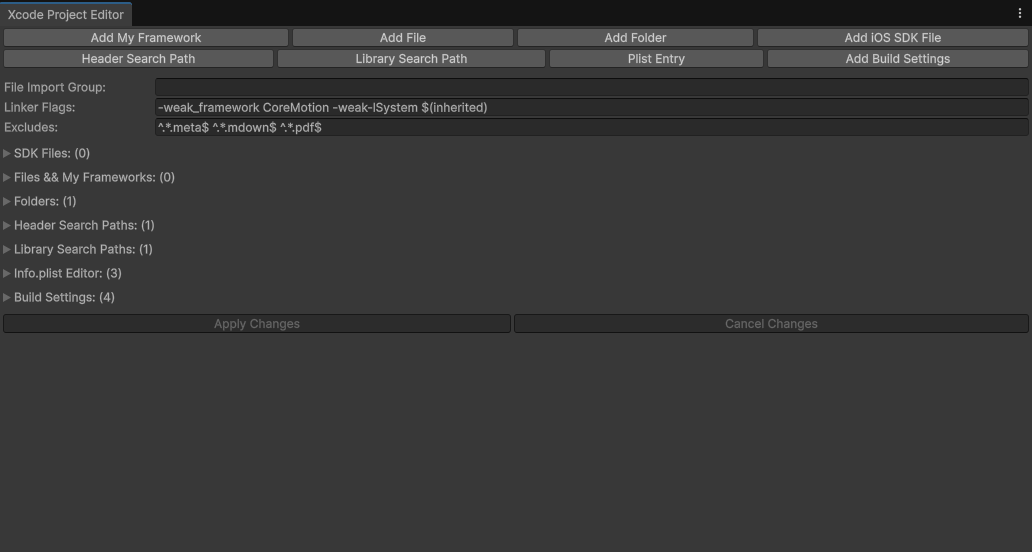
The settings are stored in the file UMU_XCODE_SETTINGS.iosProjmod. The editor looks for this file anywhere under Assets. If it does not exist, it is created as Assets/UMU/XcodeSettings/UMU_XCODE_SETTINGS.iosProjmod.
Top button rows #
| Button (as shown) | What it does |
|---|---|
| Add My Framework | Opens a folder picker (title ".framework"). Only a folder whose path contains "framework" is accepted. It is added to the file list under the current "File Import Group". |
| Add File | Opens a file picker ("Include in Xcode project"). The file is added to the file list under the current "File Import Group". |
| Add Folder | Opens a folder picker ("Include folder in Xcode project"). The folder is added to the folder list under the current "File Import Group". |
| Add iOS SDK File | Adds a new entry to the SDK Files list and opens that list. |
| Header Search Path | Adds an empty entry to the Header Search Paths list and opens it. |
| Library Search Path | Adds an empty entry to the Library Search Paths list and opens it. |
| Plist Entry | Adds an empty entry to the Info.plist Editor list and opens it. |
| Add Build Settings | Adds an empty entry to the Build Settings list and opens it. |
Adding a path that is already in the list logs the warning "Already importing: <path>" and adds nothing. Paths inside the Assets folder are stored relative to Assets.
Global fields #
| Field (as shown) | What it does | Default | Notes |
|---|---|---|---|
| File Import Group: | Xcode group name assigned to files and folders added afterwards. | empty | Each file and folder keeps its own group and shows it in its own "Group:" field. |
| Linker Flags: | Flags for the Xcode setting "Other Linker Flags", separated by spaces. | -weak_framework CoreMotion -weak-lSystem (used when the settings file has no linker flags) | Duplicates are removed when saved. |
| Excludes: | Regular expressions, separated by spaces, for files that are skipped while adding folders. | ^.*.meta$ ^.*.mdown$ ^.*.pdf$ (used when the settings file has no excludes) |
Lists #
| Foldout (as shown) | Entry controls | Notes |
|---|---|---|
| SDK Files: (n) | Foldout with the SDK name and a Remove button. Opened: a filter text box and a drop down (width 200) with the available frameworks and libraries of the installed iOS SDK. | The SDK is read from /Applications/Xcode.app/Contents/Developer/Platforms/iPhoneOS.platform/Developer/SDKs/ (the newest version found). On a computer without it, for example on Windows, the list shows placeholder entries named Test.SDK, Test2.SDK, Test3.SDK and Test4.SDK. |
| Files && My Frameworks: (n) | A "Group:" label, then a foldout with the file name and a Remove button. Opened: a "Path:" label and a "Group:" text box. | An entry whose file cannot be found is drawn in red and an error is logged once. |
| Folders: (n) | Same as files. | |
| Header Search Paths: (n) | Text box, a button "recursive" or "non recursive", a "Set" button and a "Remove" button. | The recursive button adds or removes the suffix /**. Set opens a folder picker and stores the path relative to the project. |
| Library Search Paths: (n) | Same controls as Header Search Paths. | Stored under the JSON key libs (see 3.3). |
| Info.plist Editor: (n) | One box per entry: foldout "Plist Entry: <key>" with a Remove button. Opened: "Key:" text, "Type:" drop down (STRING, BOOL, NUMBER, DATA, DATE, ARRAY, DICTIONARY) and a "Value:" field matching the type. ARRAY and DICTIONARY show nested entries and a "New Plist Entry" button. | Entries inside an array are labelled "Array Entry <index>" and have no key. |
| Build Settings: (n) | Per entry: "Setting Name: ", "Setting New Value: ", "Build Configuration Name: " (default all) and a Remove button. | Stored as text name|value|configuration. |
Bottom buttons #
| Button | What it does | Notes |
|---|---|---|
| Apply Changes | Writes the whole form into the settings file (formatted JSON). | Green when there are unsaved changes, grey otherwise. |
| Cancel Changes | Reloads the form from the settings file. | Red when there are unsaved changes, grey otherwise. |
Changes are not saved until Apply Changes is pressed.
Inspector reference #
This module has no components or assets in the Inspector. All settings are edited in the window described above.
JSON settings file and post process behaviour #
Keys written by the window:
| JSON key | Written from | Content |
|---|---|---|
BuildSettings | Build Settings list | Array of strings name|value|configuration. |
FileAndFolderPaths | Files and Folders lists | Array of objects with group, files, folders and excludes. |
frameworks | SDK Files list | Array of framework or library names. |
libs | Library Search Paths list | Array of strings (see the note below). |
headerpaths | Header Search Paths list | Array of strings. Empty entries are skipped. |
linker_flags | Linker Flags | Array of strings. |
excludes | Excludes | Array of regular expressions. |
plist | Info.plist Editor | Object. Booleans and numbers are stored as text ("True", "3"). |
Keys that the post process also understands when you write them by hand in a .iosProjmod file: group, files, folders, compiler_flags, embed_binaries, and in plist the key urltype (list of objects with name, role and schemes) for CFBundleURLTypes.
Post process (runs after every iOS build):
- Every
*.iosProjmodfile underAssetsis read and applied to the generated Xcode project: libraries (entries oflibs, taken fromusr/lib, with an optional:weaksuffix), frameworks (an entry with:weakis added as a weak link), files, folders (respectingexcludes), header search paths, compiler flags, linker flags, embedded binaries, Info.plist items and finally theBuildSettingsentries (the configuration nameallor a specific one). - Values in
plistare written toInfo.plistand typed from their text: a number text becomes a number,trueorfalsebecomes a boolean, a date text becomes a date, anything else a string. - After the project is saved, every
.m,.mm,.hand.hhfile in the build output has the module import@import X;rewritten to#import <X/X.h>. - A second, simpler path reads files named
*.iosPostProcess.jsonunderAssets:{"buildSettings":[{"key":"","value":""}],"frameworks":["name"],"plistKeys":[{"key":"","value":""}]}. Build settings are applied to the main target, frameworks are added to the UnityFramework target, plist values are written as strings. It needs the iOS Build Support module of Unity and is skipped with a warning when the module is not installed.
If the build target is not iOS, the post process logs a warning and does nothing.
Code examples #
Write a settings file from an editor script #
#if UNITY_EDITOR
using System.Collections;
using System.IO;
using UnityEditor;
using UnityEngine;
using UMU.Utility;

public static class XcodeSettingsExample
{
    [MenuItem("Tools/Write Xcode Settings")]
    private static void Write()
    {
        Hashtable plist = new Hashtable();
        plist["NSCameraUsageDescription"] = "The camera is used to scan codes.";
        plist["UIRequiresFullScreen"] = "True";

        ArrayList buildSettings = new ArrayList { "ENABLE_BITCODE|NO|all" };
        ArrayList linkerFlags = new ArrayList { "-ObjC", "$(inherited)" };

        Hashtable root = new Hashtable();
        root["BuildSettings"] = buildSettings;
        root["linker_flags"] = linkerFlags;
        root["plist"] = plist;

        string json = JsonFormatter.FormatJson(MiniJSON.jsonEncode(root));
        string path = Path.Combine(Application.dataPath, "MyProject/Custom.iosProjmod");
        Directory.CreateDirectory(Path.GetDirectoryName(path));
        File.WriteAllText(path, json);
        AssetDatabase.Refresh();
    }
}
#endif
Any *.iosProjmod file under Assets is applied on the next iOS build, in addition to UMU_XCODE_SETTINGS.iosProjmod.
Settings file for the simple post process path #
{
  "buildSettings": [ { "key": "ENABLE_BITCODE", "value": "NO" } ],
  "frameworks": [ "CoreMotion.framework" ],
  "plistKeys": [ { "key": "NSCameraUsageDescription", "value": "Used for scanning." } ]
}
Save it as Assets/MyProject/MySettings.iosPostProcess.json.
14. Resource Checker #
Lists the textures, materials and meshes used by the objects in the open scenes, with memory size and where they are used. It is based on the public domain Unity Resource Checker.
Editor menu and window reference #
Menu item: UMU > Resource Checker. The window title is "Resource Checker", minimum size 475 by 475. Opening the window runs a first scan.
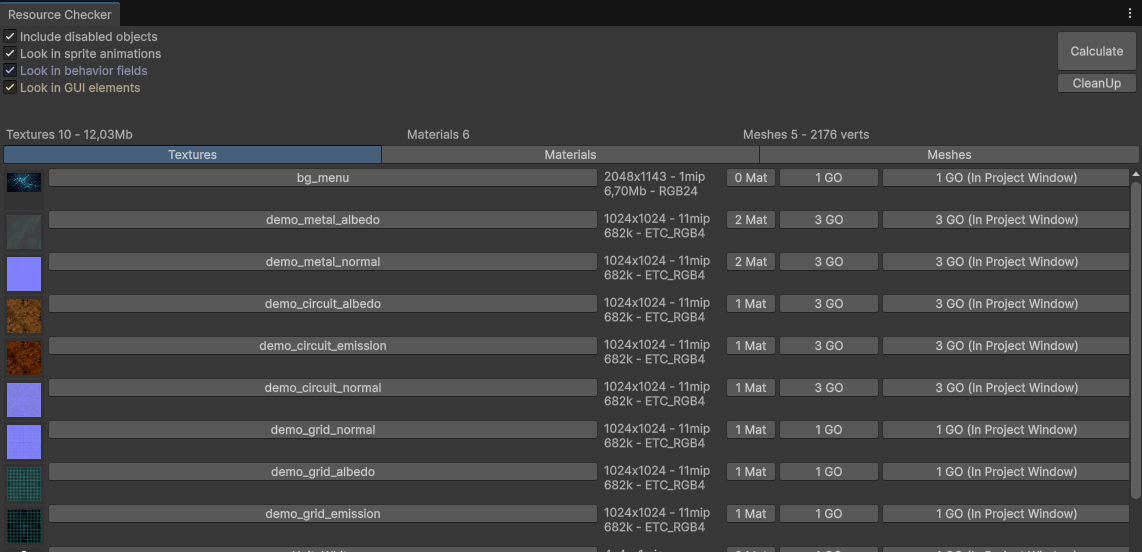
Option toggles (top of the window) #
| Control (as shown) | What it does | Default |
|---|---|---|
| Include disabled objects | Also scans inactive objects in all loaded scenes. When off, only active objects are scanned. | On |
| Look in sprite animations | Also reads sprite frames from the animation clips of Animator controllers. | On |
| Look in behavior fields | Also reads public Sprite, Mesh and Material fields of scripts. Resources found this way are marked as script references. | On |
| Look in GUI elements | Also scans UI graphics (their textures and materials) and the sprite states of buttons. | On |
The options take effect at the next Calculate.
Buttons #
| Button | What it does |
|---|---|
| Calculate | Runs the scan with the current options and rebuilds all lists. |
| CleanUp | Calls Resources.UnloadUnusedAssets. |
Summary line #
Three labels: "Textures <count> - <total size>", "Materials <count>", "Meshes <count> - <vertex total> verts". Sizes are shown as kilobytes (k) or megabytes (Mb).
If any object has a missing sprite, mesh or material, a red box "Some GameObjects are missing graphical elements." appears and a fourth tab appears.
Tabs (toolbar) #
| Tab | Content |
|---|---|
| Textures | One row per texture, largest first. Thumbnail, name button (selects the texture), a size label (width x height, mip count, memory size, format, plus cube map and array details), "<n> Mat" button (selects the materials that use it), "<n> GO" button (selects the game objects that use it), "<n> GO (In Project Window)" button (selects the texture asset itself). A "Select All" button at the bottom selects every listed texture. |
| Materials | One row per material. Preview, name button, shader name (or "no shader"), "<n> GO" button (selects the renderers and UI graphics that use it). |
| Meshes | One row per mesh, most vertices first. Name button, vertex count, "<n> GO" button (mesh filters), "<n> skinned mesh GO" button (skinned mesh renderers; greyed "0 skinned mesh" when none). |
| Missing | Shown only when something is missing. One row per object with a button (selects the object) and the missing type: mesh, sprite or material. |
Row colours: bluish for resources found through script fields, yellowish for GUI resources, reddish for the skybox.
Holding Ctrl (Command on macOS) while pressing a selection button adds to the current selection. Pressing the same single object again with Ctrl removes it from the selection.
The lists are cleared automatically when you switch between edit mode and play mode. Press Calculate again after the switch.
Inspector reference #
This module has no components or assets in the Inspector.
Code examples #
The window is operated from its menu and has no public scripting API. To open it from your own editor code:
#if UNITY_EDITOR
using UnityEditor;

public static class OpenResourceChecker
{
    [MenuItem("Tools/Open Resource Checker")]
    private static void Open()
    {
        EditorApplication.ExecuteMenuItem("UMU/Resource Checker");
    }
}
#endif
15. Demo content #
The package with demo contains complete, responsive demos for the modules.
| Demo | What it shows |
|---|---|
| GUI Manager (2D) | Menu, panels and popups with slide and fade transitions, history, safe area, responsive layout |
| GUI Manager (3D) | A 3D scene behind the UI with clickable 3D objects that open a panel and a popup |
| Audio | Volume sliders, SFX, music and voice buttons, and a GuiManager popup (Audio Demo Panel prefab, a GuiPanel with GuiPanelAudioBridge) that plays sounds on open and close |
| Logger | Logger demo scene with the console window |
The demo UI works from 4:3 tablets to 21:9 phones, and respects the safe area. Demo art, textures and 3D models were created for UMU. The demo audio clips were created for UMU. The demo music, WinSysAnalyzer.mp3, is the property of BMSoft1024 (https://bmsoft1024.com/product/winsysanalyzer).
Demo scenes: GUI Manager/Demo/GuiManager2D_Rebuilt.unity, GUI Manager/Demo/GuiManager3D.unity, Audio/Demo/AudioDemo.unity, Audio/Demo/AudioDemoSecond.unity, Logger/Demo/demo.unity. The Messenger module has a small test script in its Demo folder. Delete the demo folders before shipping your game.
The package without demo contains no demo scenes, prefabs or example assets.
16. About window #
UMU > About shows information about UMU, a link to the UMU website and a link to the Unity Asset Store page.
17. Third-party notices #
See Third-Party Notices.txt in the Assets/UMU folder. In short:
- Resource Checker: public domain (HandCircus and Mangatome)
- Simplex noise: public domain (Stefan Gustavson)
- MiniJSON and the Xcode project editor are written by the author of UMU
- Demo audio, art and models: created by BMSoft1024 for UMU
- Demo music
WinSysAnalyzer.mp3: property of BMSoft1024, https://bmsoft1024.com/product/winsysanalyzer
18. Known limitations #
- Code obfuscation makes reverse engineering harder but is not encryption
- Panel loading uses
Resourcesby default. UseexternalPanelsorRegisterPanelfor other sources - The
OpenPanelqueue has one slot, the last request wins by design - An
alwaysOnToppopup can only be closed explicitly withClosePopup(id) - The Audio UI channel is limited to 4 simultaneous sounds
- OGG output in Audio Cutter needs an external
oggenc